Share the link
Send team.bunkersync.com and the club course code to the team.
Everything your team needs to set up and use Team Hub, from the first login to daily jobs, clipping data, bunker work, snagging and manager controls.
This guide covers the complete current platform, including the advanced Irrigation mapping, faults, stock and sprinkler coverage tools.
Screenshots are kept compact for easier reading — tap any image to enlarge it.
Add Team Hub to the phone home screen so it opens like a normal app.
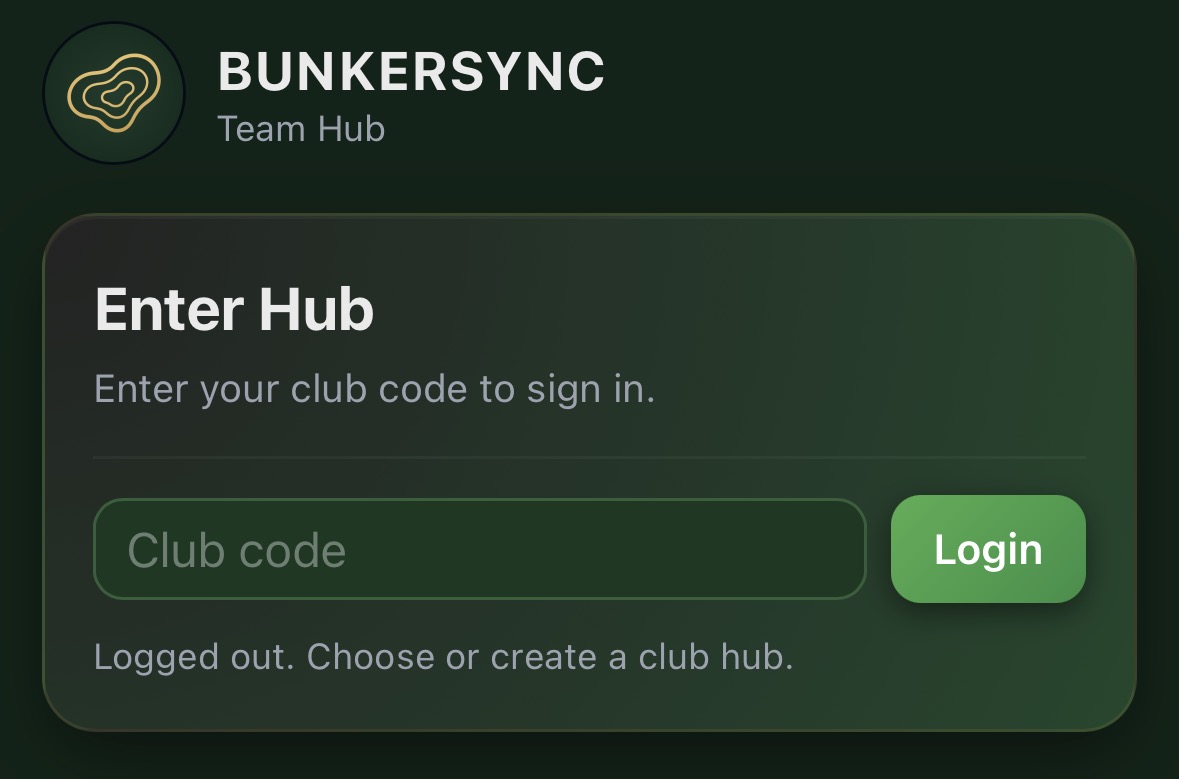
Enter the club course code, then tap Login.
Send team.bunkersync.com and the club course code to the team.
Install the web app shortcut on iPhone or Android.
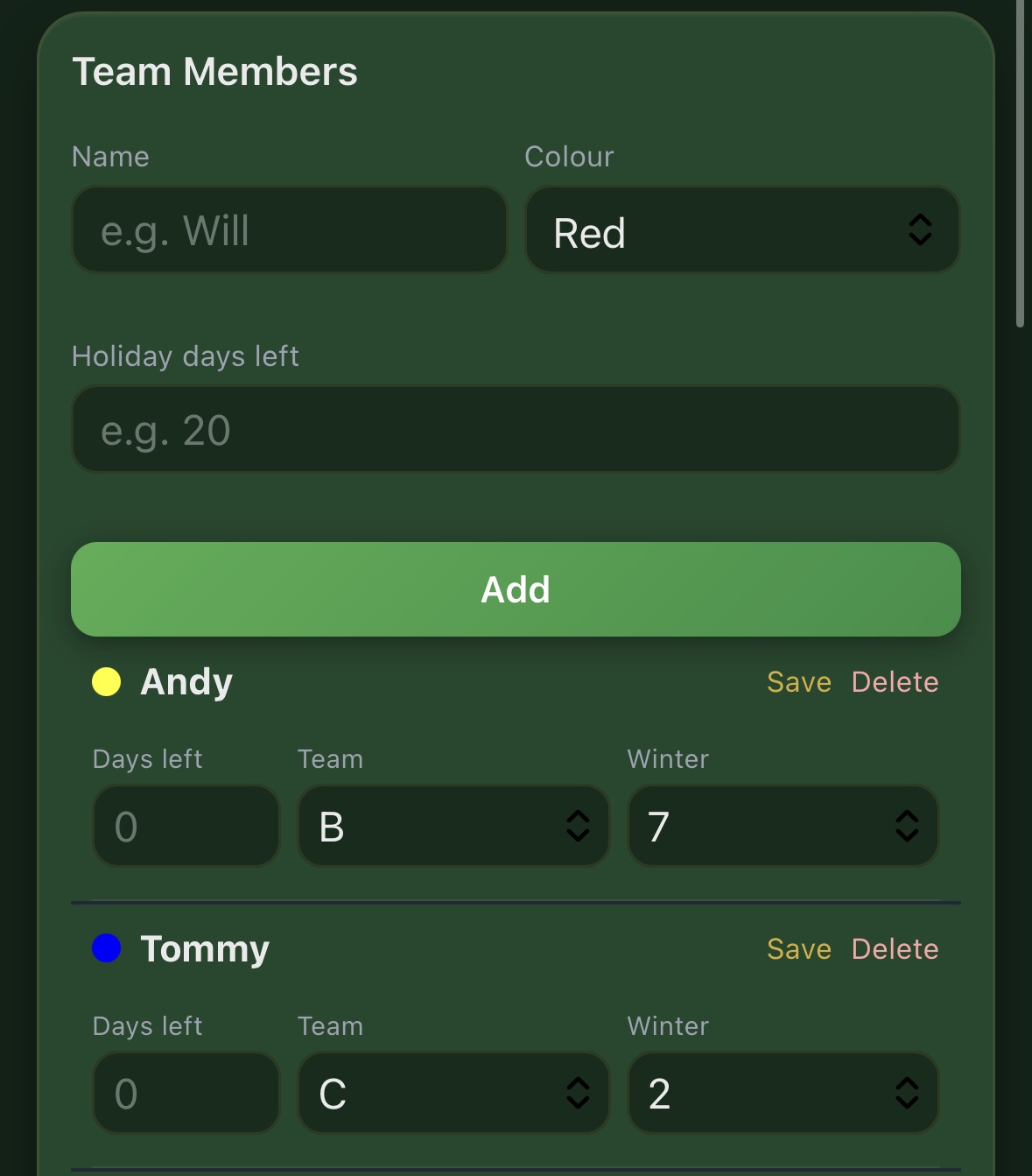
Add team members, machines, holiday rules, links and an admin PIN.
The team can then use the shared tools from one dashboard.
First login
Team Hub is a web app, so there is nothing to download from an app store. Share one link with the team, add it to the home screen and sign in with the club course code.
Initial club setup
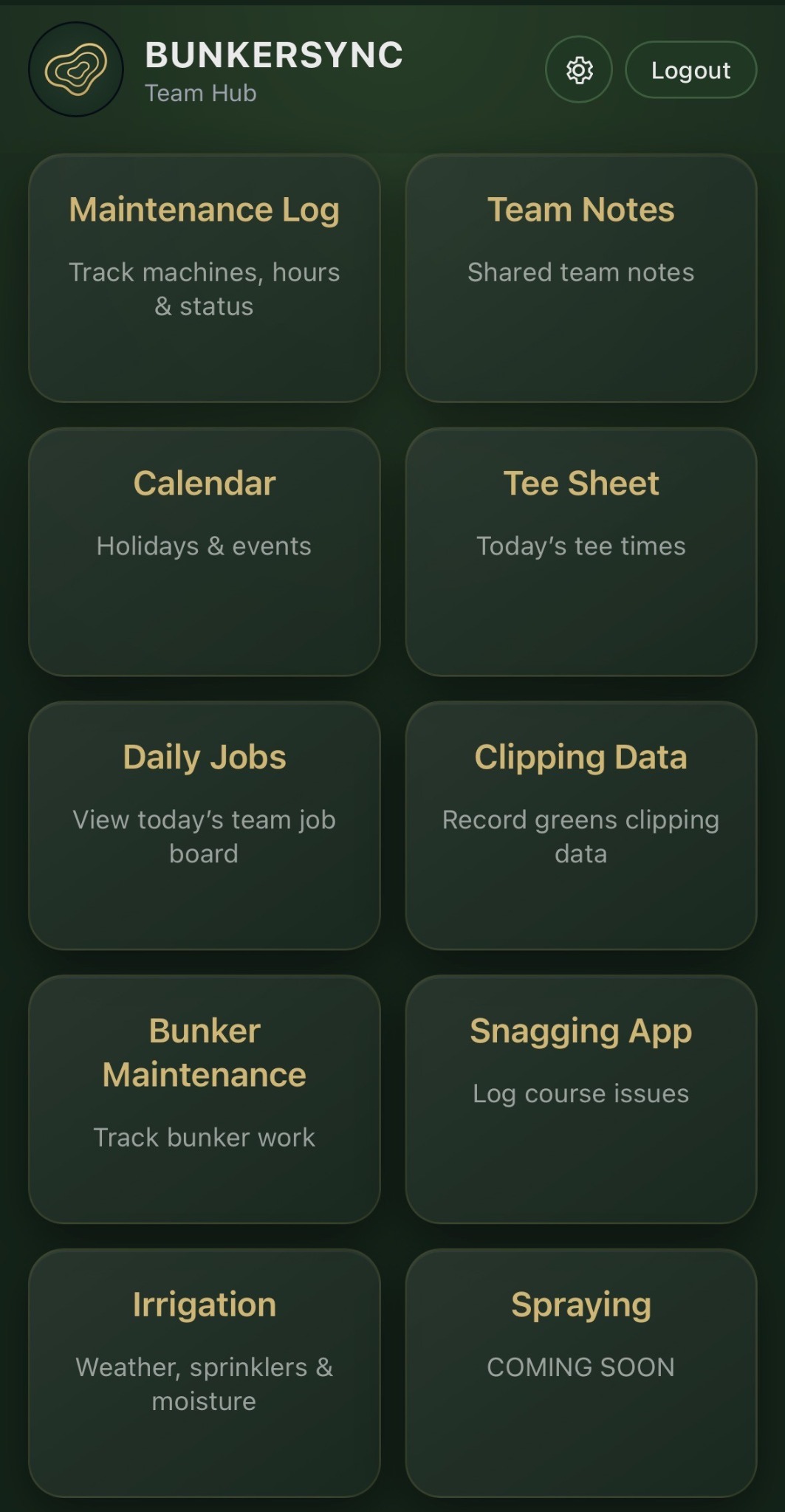
After login, Team Hub opens to the module dashboard. The settings cog contains the shared club setup used throughout the app.
The dashboard contains the available modules. Tap the settings cog in the top-right corner to open club setup. The cog turns gold when admin mode is active.
Can open the shared modules, view information, record work and submit holiday requests.
Can change settings, approve holidays, edit the calendar and Daily Jobs, upload the daily tee sheet image and access manager-only controls.
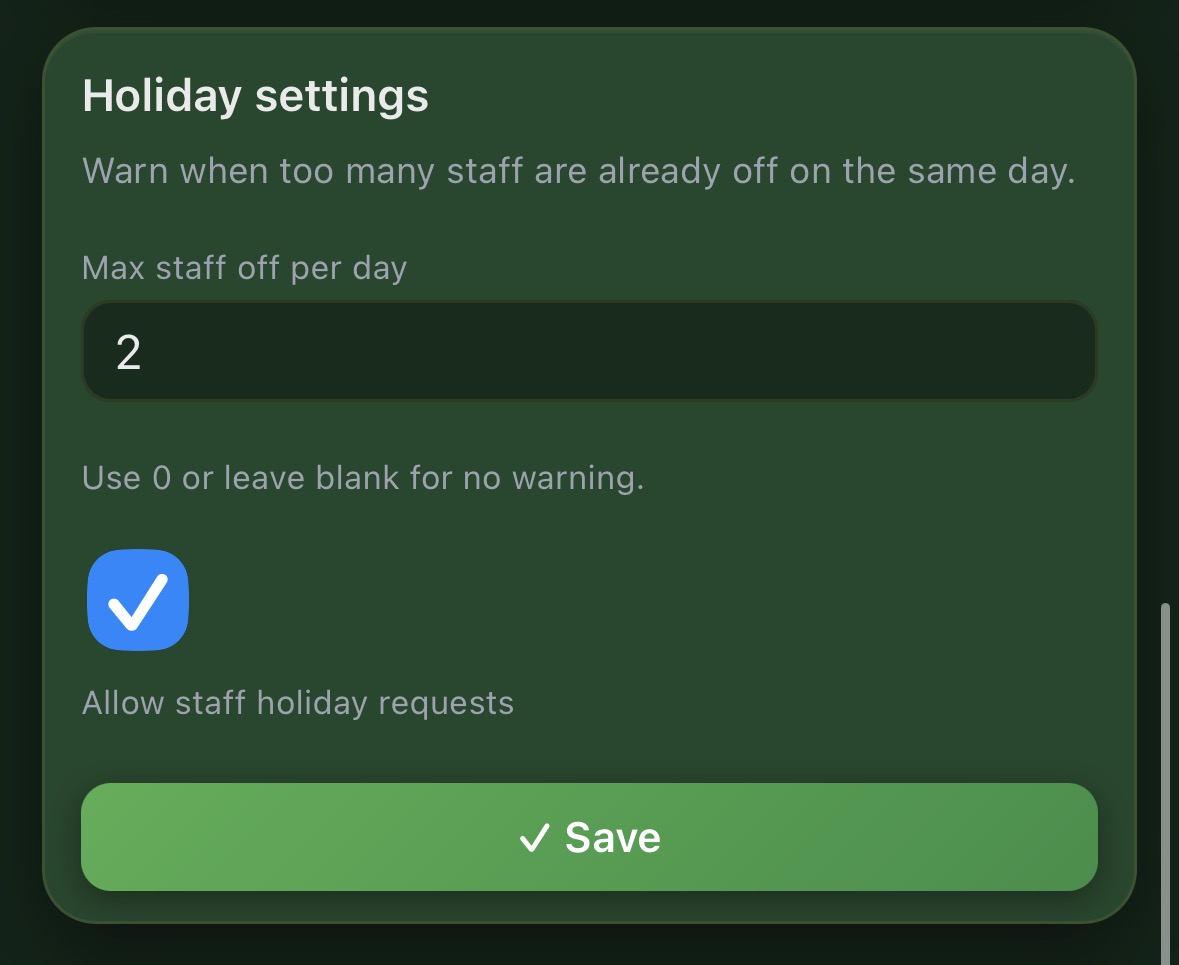
Staff can still submit a request when the limit is reached, but the app displays a warning so the clash is clear before it is sent or approved.
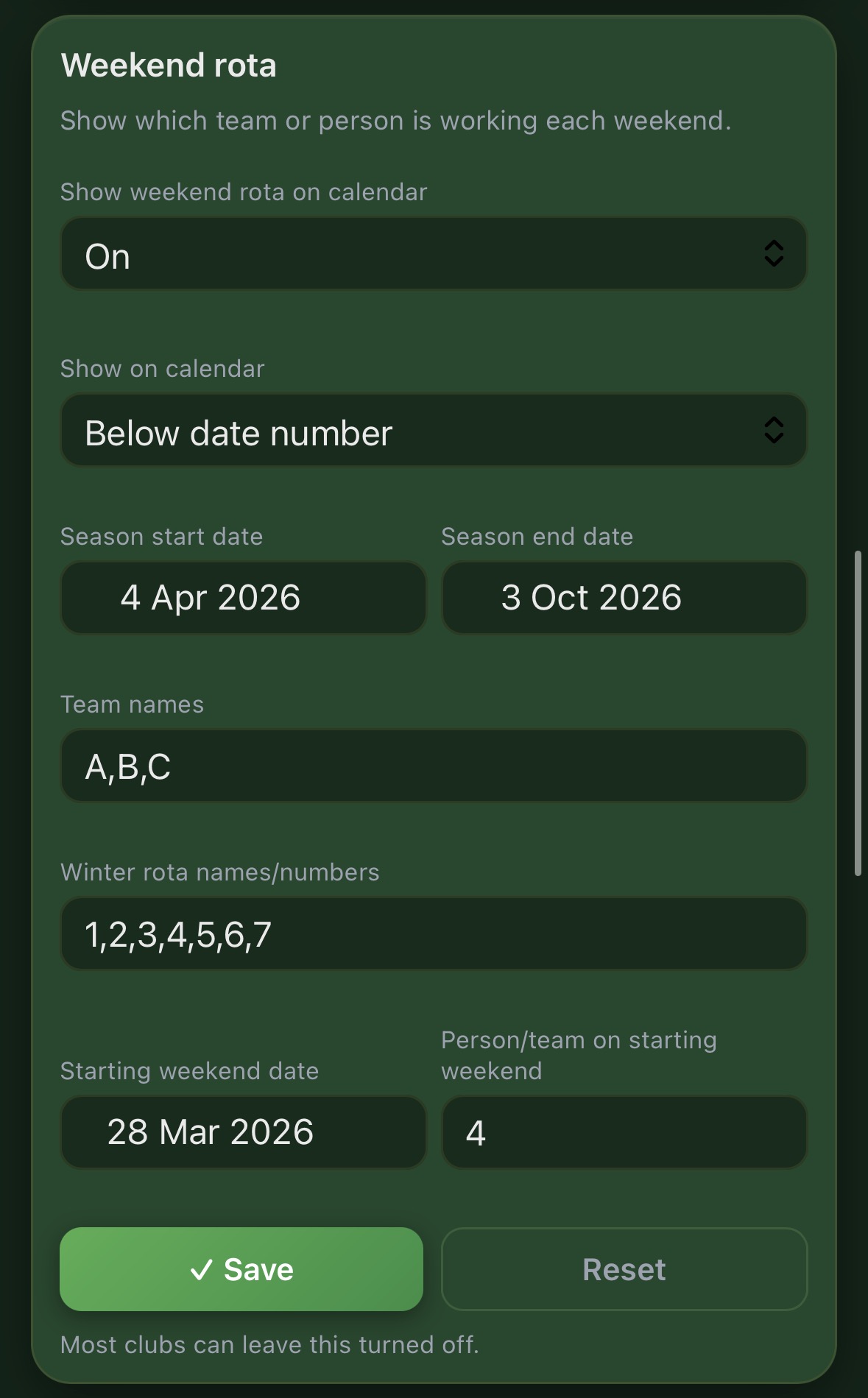
The rota is optional. Turn it on only when the club wants weekend teams or individual winter numbers displayed on the calendar.
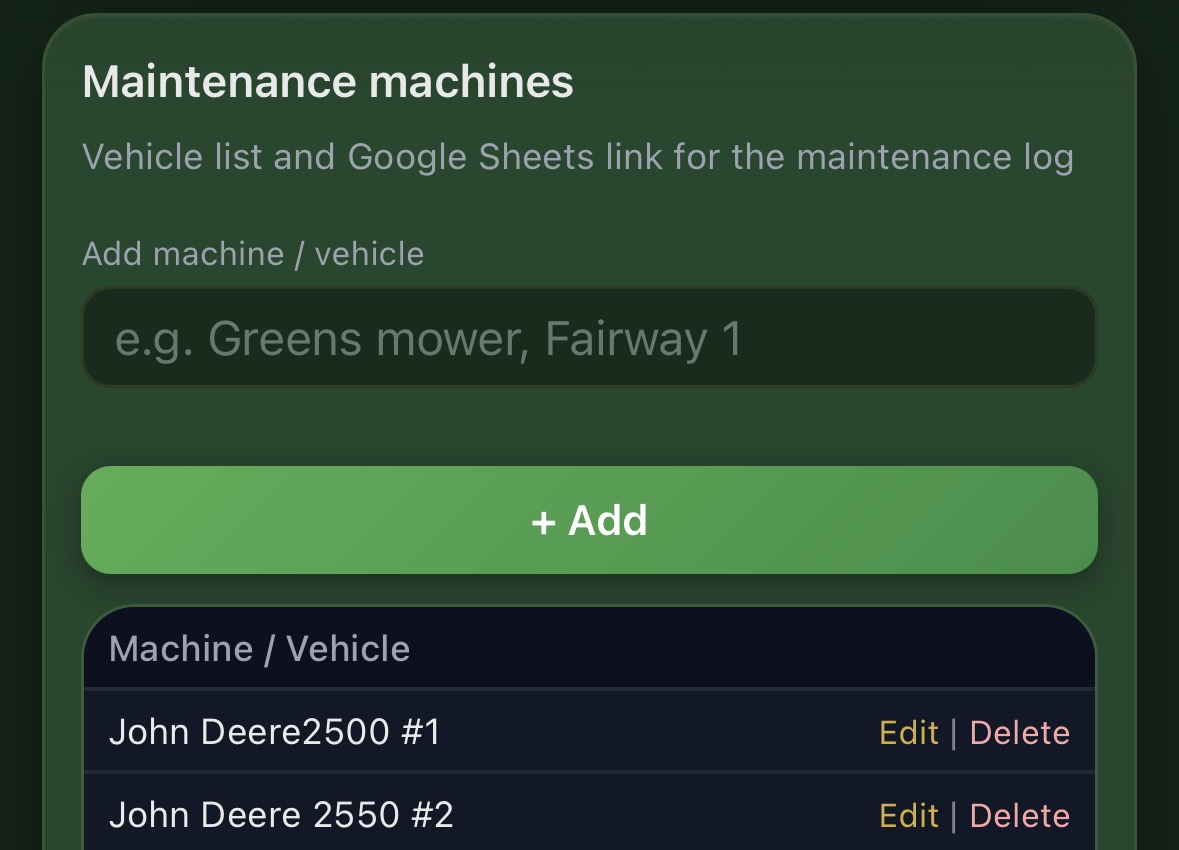
Add every machine or vehicle that the team needs to sign out in the Maintenance Log. Use clear names that are easy to recognise, especially where the club owns several similar machines.
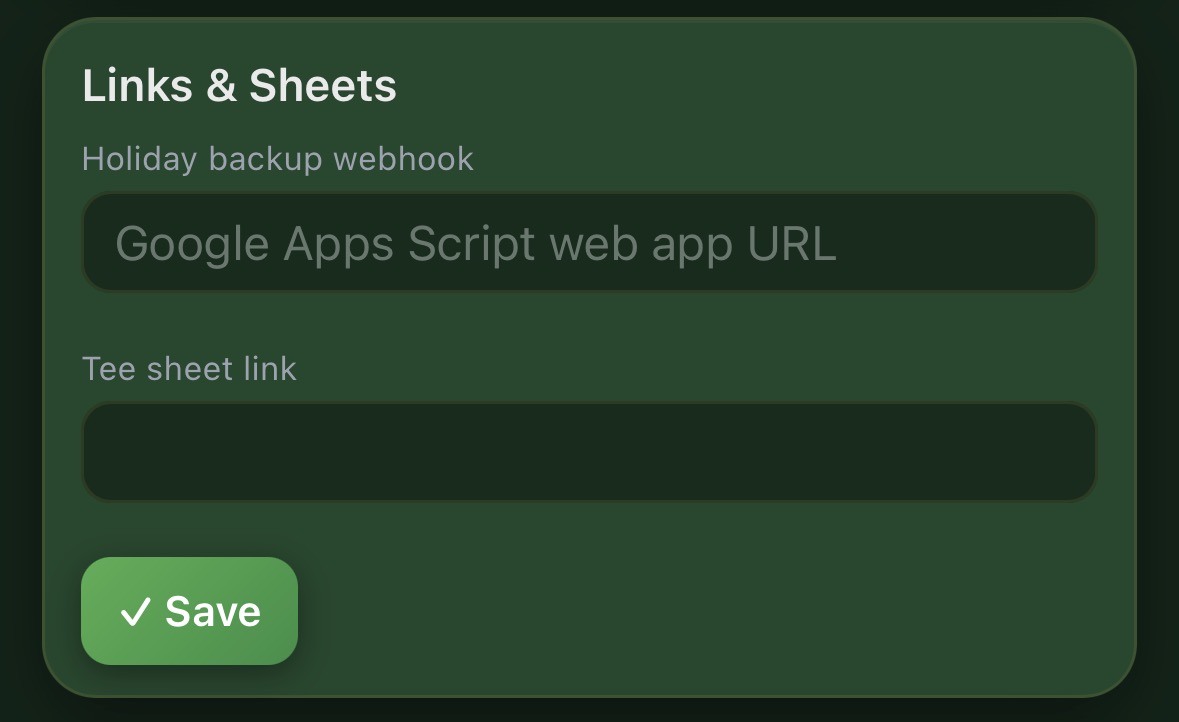
The links section can hold the optional holiday backup and the club tee-sheet address.
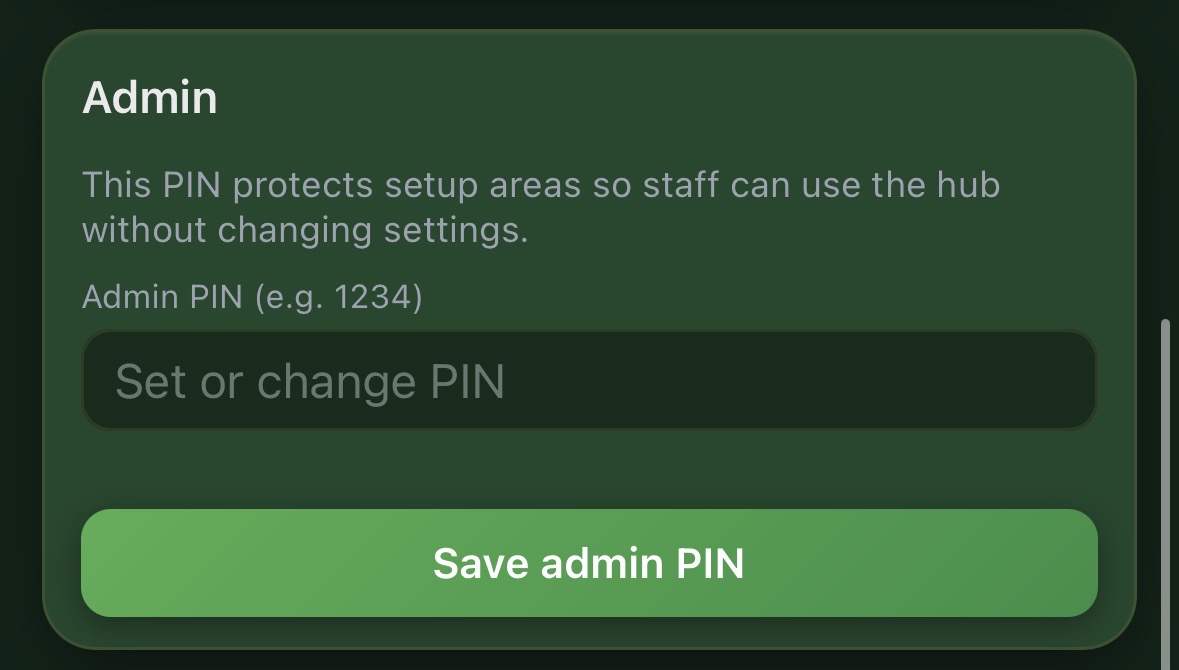
The PIN protects setup and manager-only controls while allowing the rest of the team to use the hub normally.
Admin mode remains active on that device for up to 30 days unless the user explicitly logs out. A gold settings cog confirms that admin mode is active.
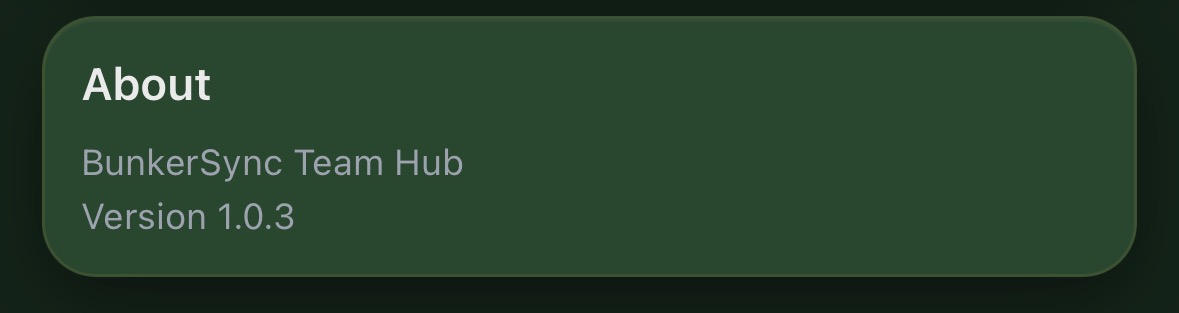
The current Team Hub version appears at the bottom of settings. Quote this number when reporting an issue so it is clear which release is installed.
Machine records
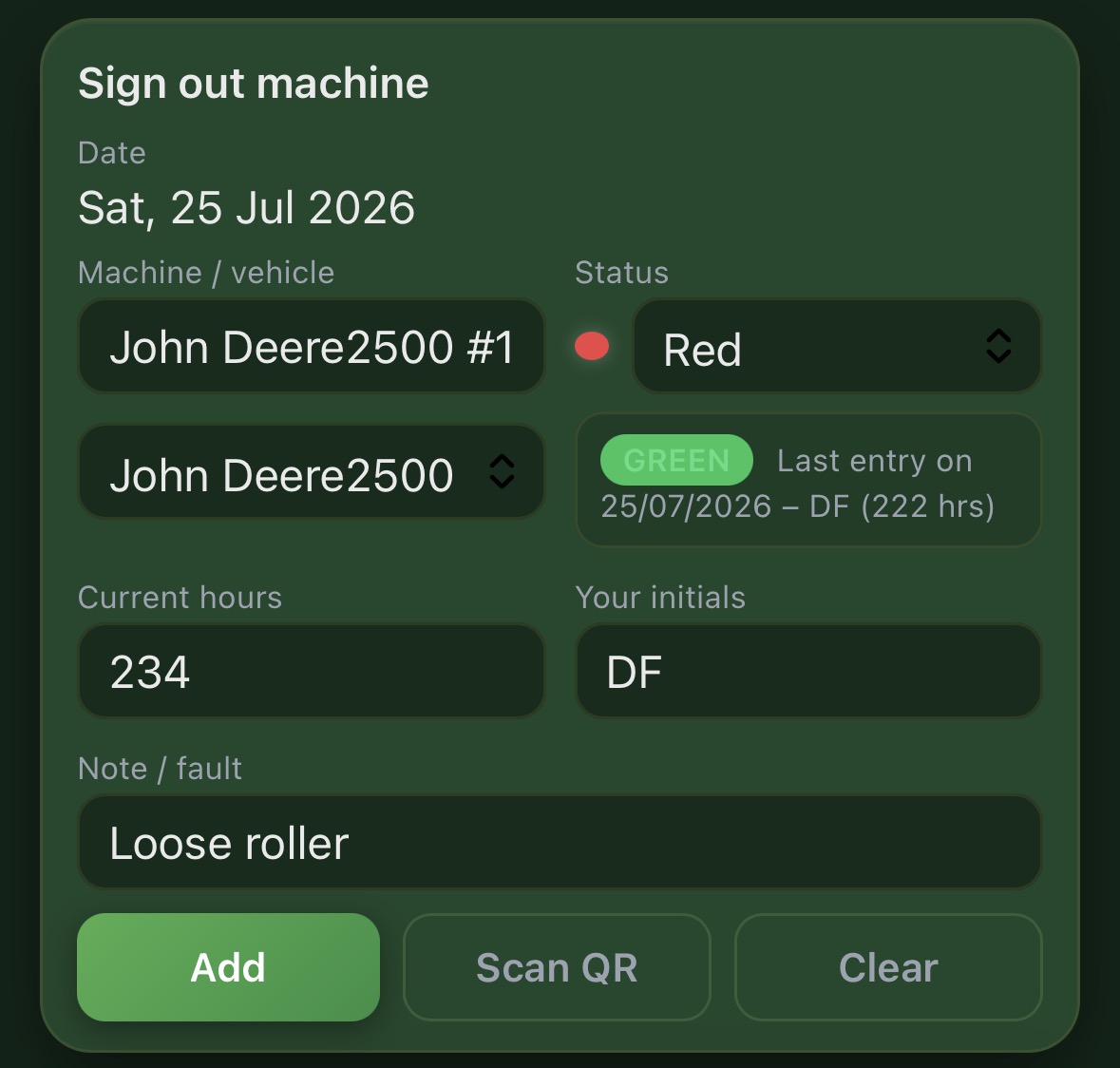
Record who used each machine, its hours and its condition. Active amber and red faults are brought together for the mechanic and highlighted on Team Hub.
There are three ways to choose a machine: search for it, select it from the list, or scan its QR code.
The form also shows the last recorded status, date, initials and hours for the selected machine.
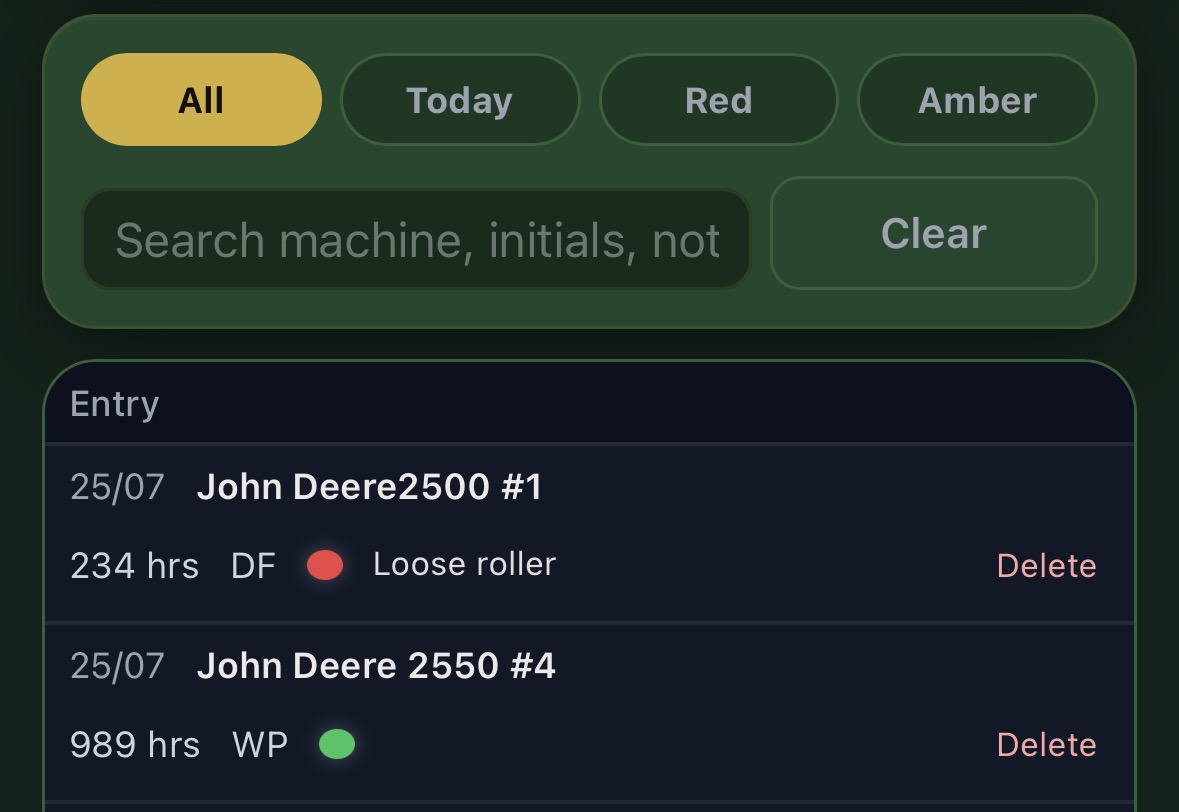
Saved records appear below the form. View all entries, today's entries, Red entries or Amber entries, and use the search field to find a machine, initials or note.
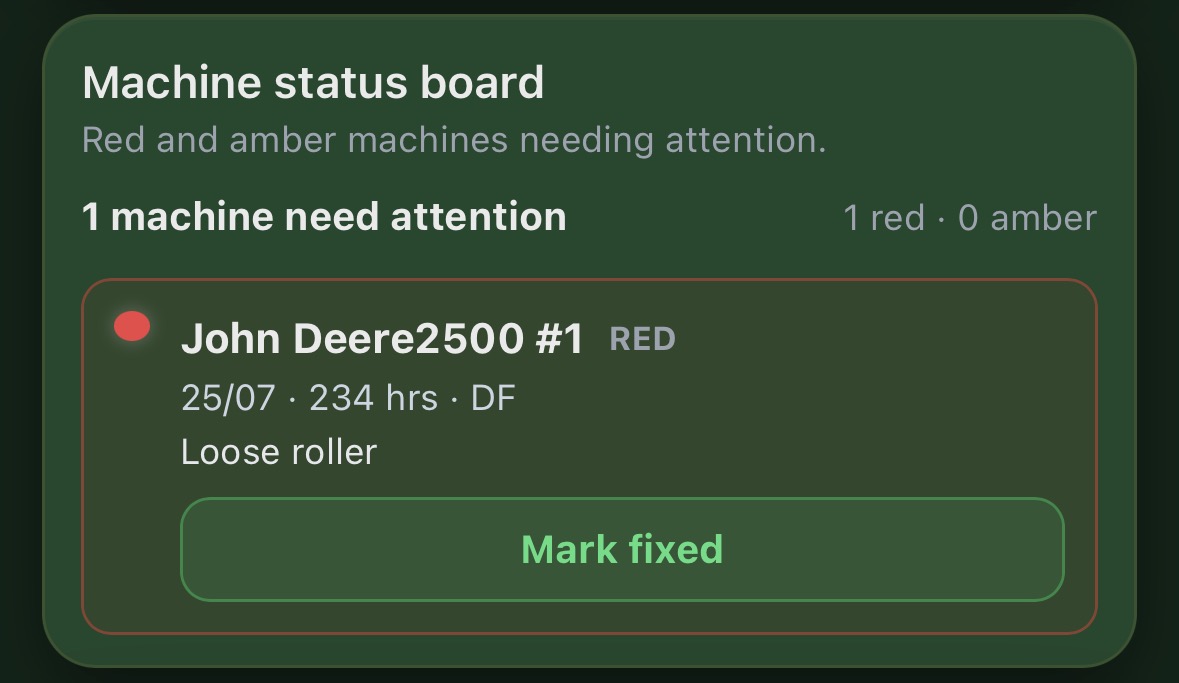
Every machine with an active Amber or Red status is shown on one status board with its date, hours, initials and fault note. Once the repair is complete, tap Mark fixed to remove it from the active attention list.
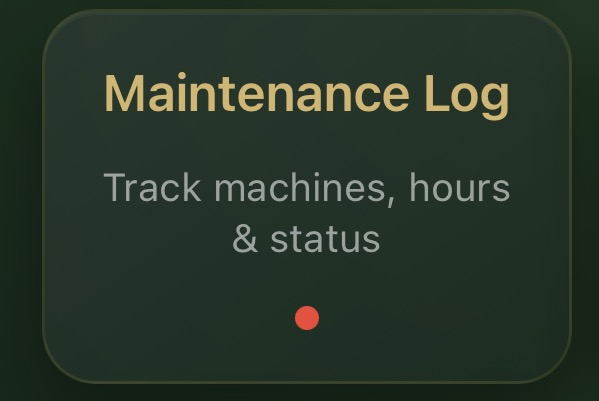
A warning dot appears on the Maintenance Log tile whenever an Amber or Red machine is active, so the issue is visible before the module is opened.
Holidays, events and rota
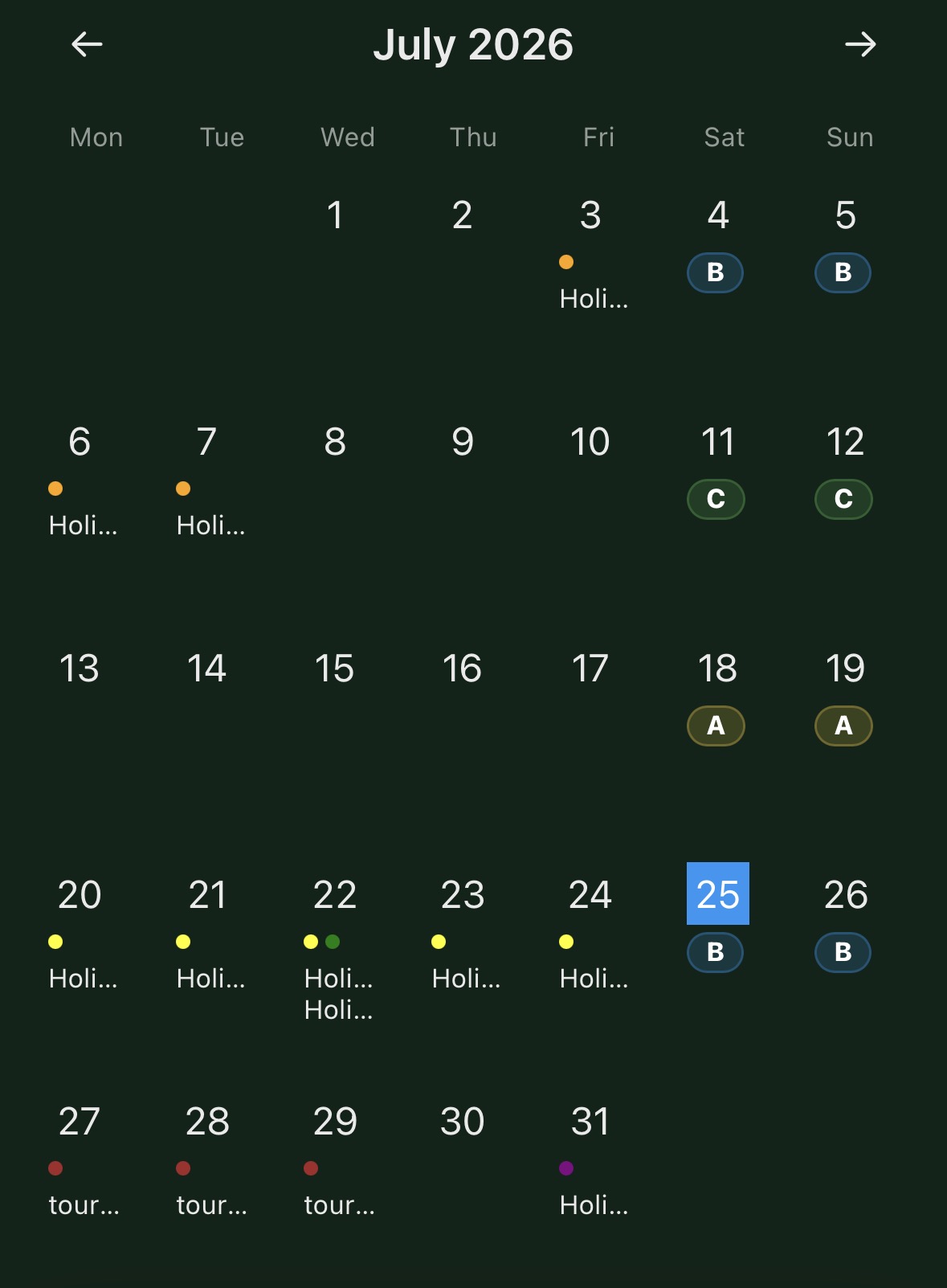
The shared calendar combines staff holidays, club events, blocked dates and the optional weekend rota. Admins can manage requests and staff can submit leave from the same screen.
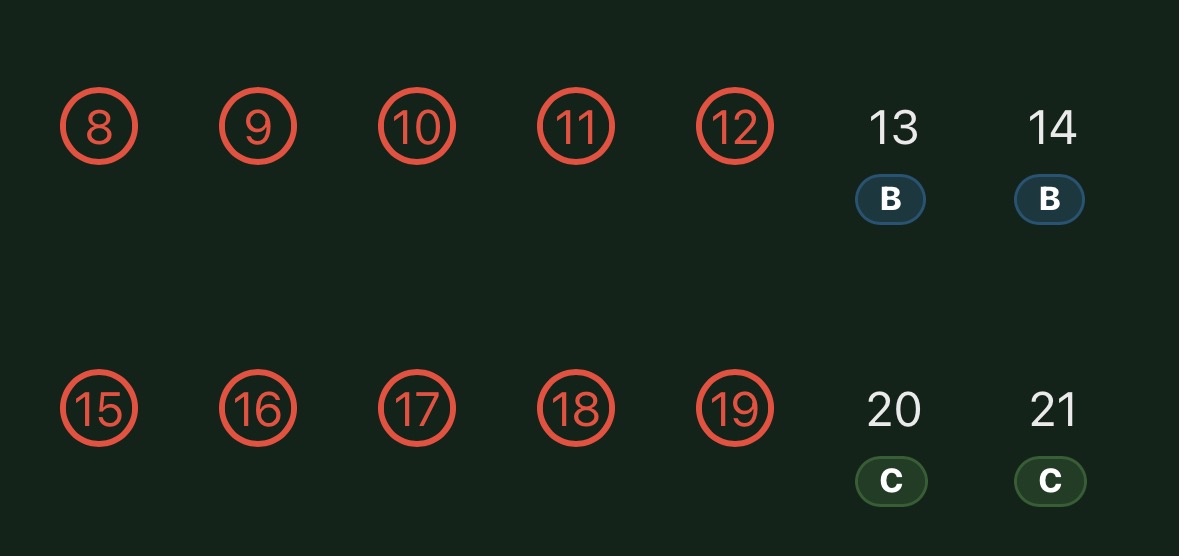
Holiday entries use the colour assigned to each team member. Weekend teams or winter numbers appear on Saturdays and Sundays, and club events are shown on their dates.
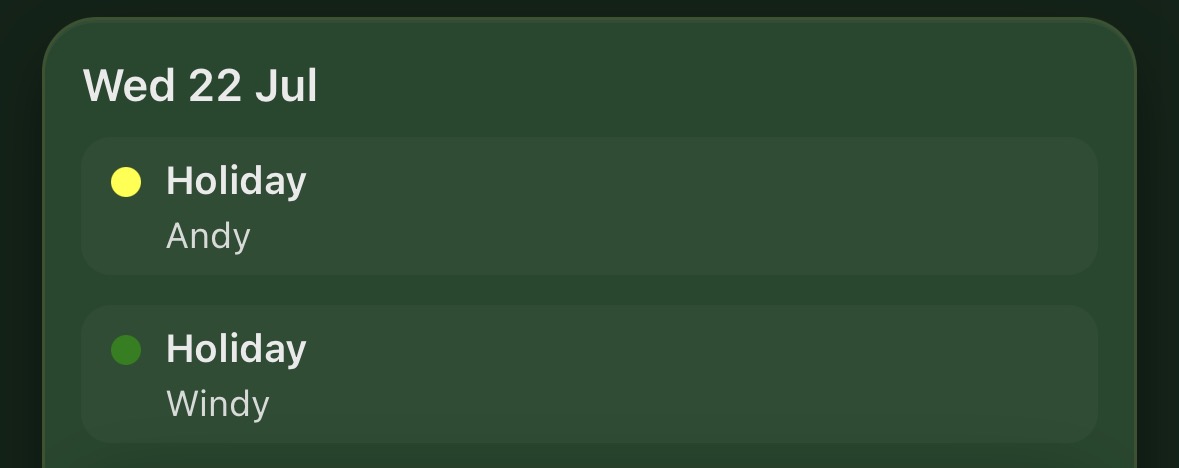
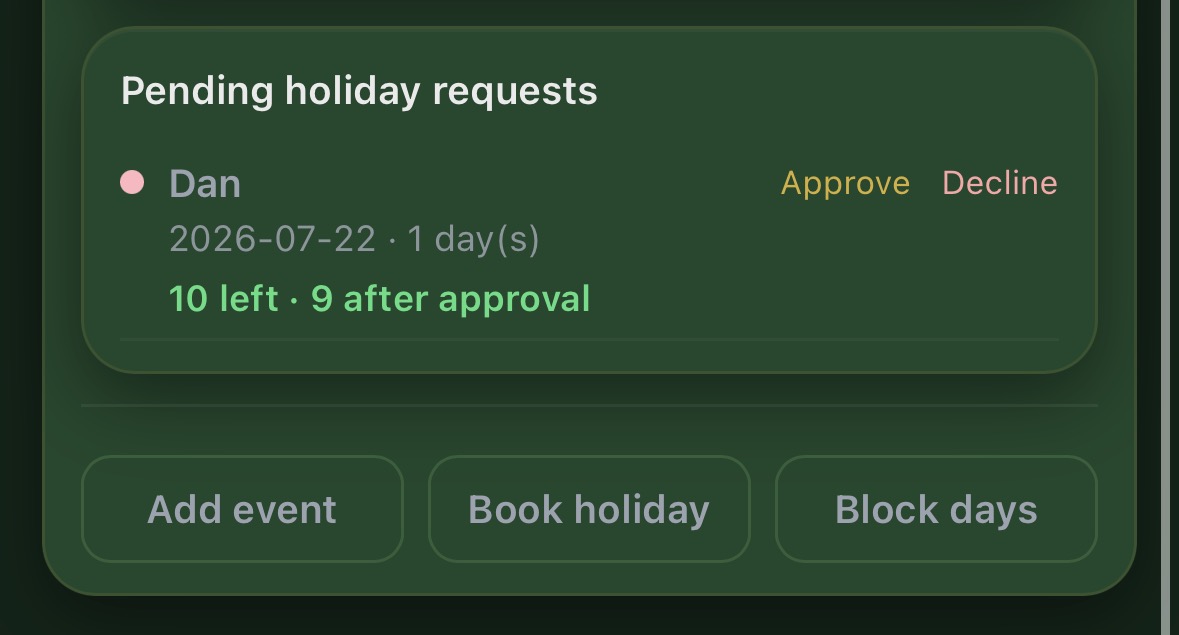
When admin mode is active, pending requests appear below the calendar. Each request shows the person's current allowance and the number of days that would remain after approval.
Admins can also use the buttons below the request panel to add an event, book a holiday directly or block days.
Blocked dates are shown with a red circle. Use them for major competitions, maintenance week or other periods when additional leave should be avoided.
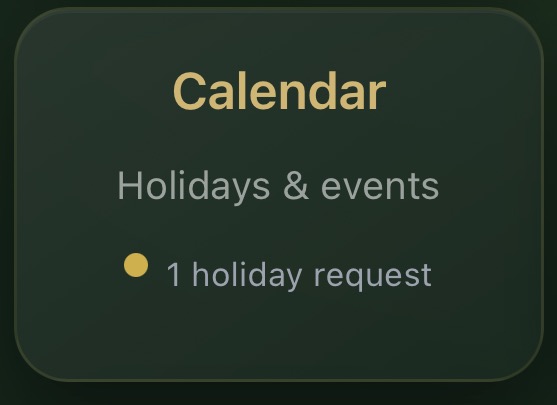
When an administrator is signed in, the Calendar tile shows the number of pending holiday requests.
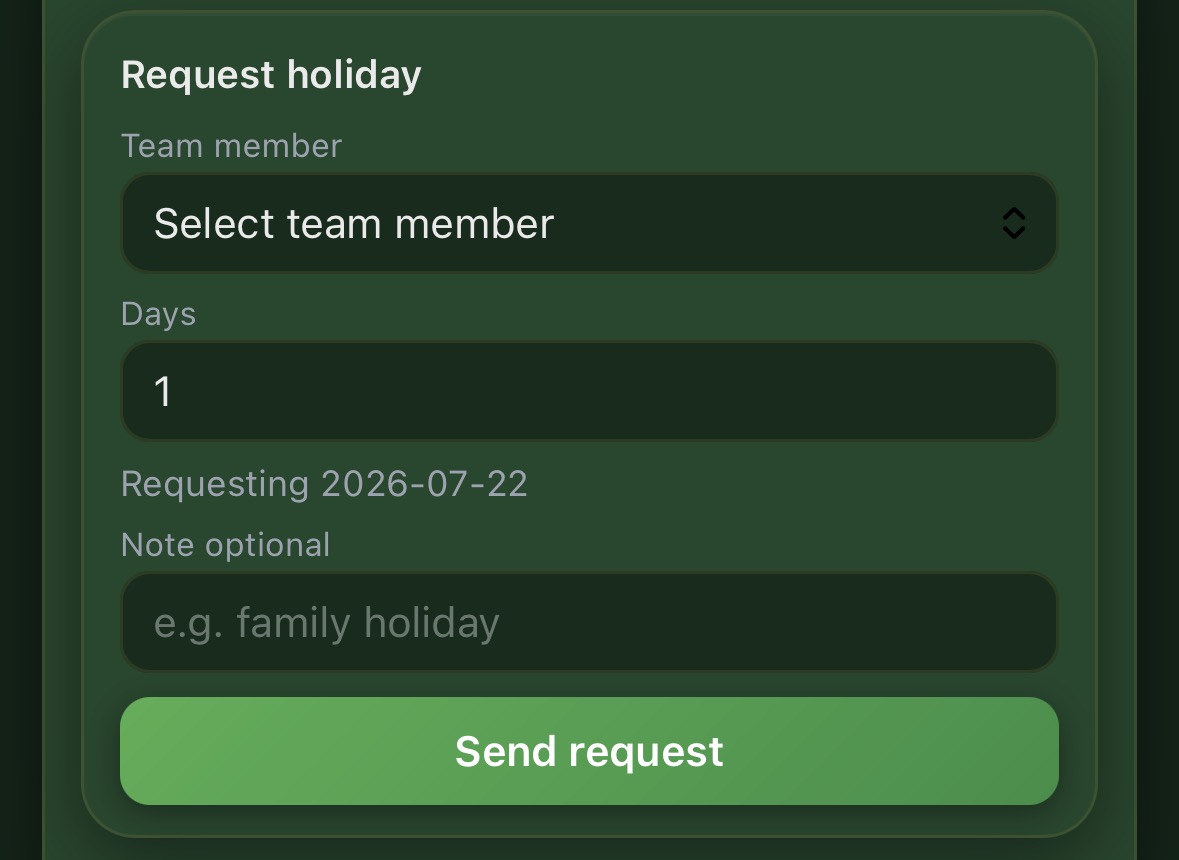
Non-admin users can submit a request from the form at the bottom of the calendar screen.
If too many people are already off, the app displays the warning configured in settings before the request is submitted.
Shared job board
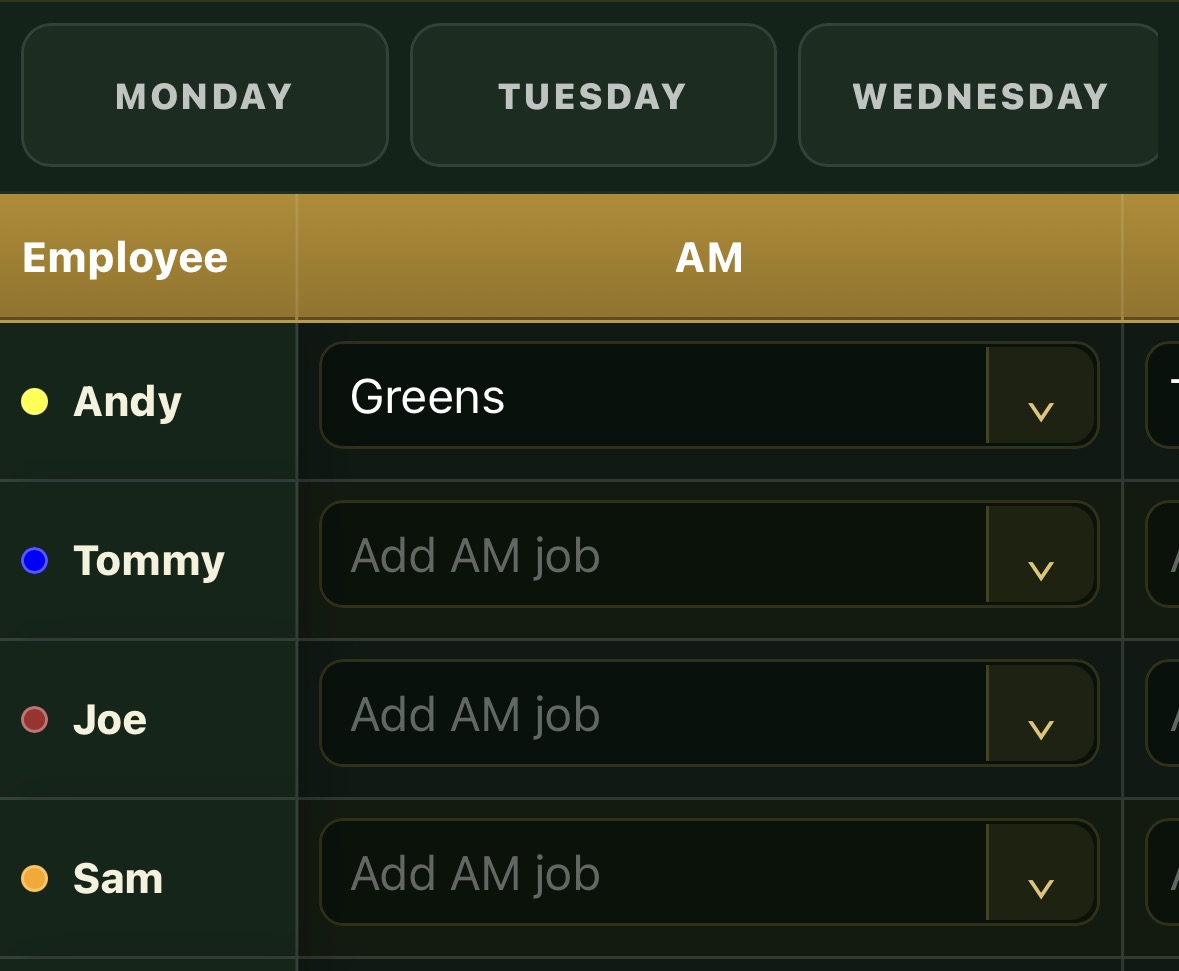
Build the daily work board inside Team Hub. Names come directly from the Team Members list and the whole team can see the latest assignments.
The board opens on today's day. Use the day buttons at the top to move through the week or open the separate weekend board.
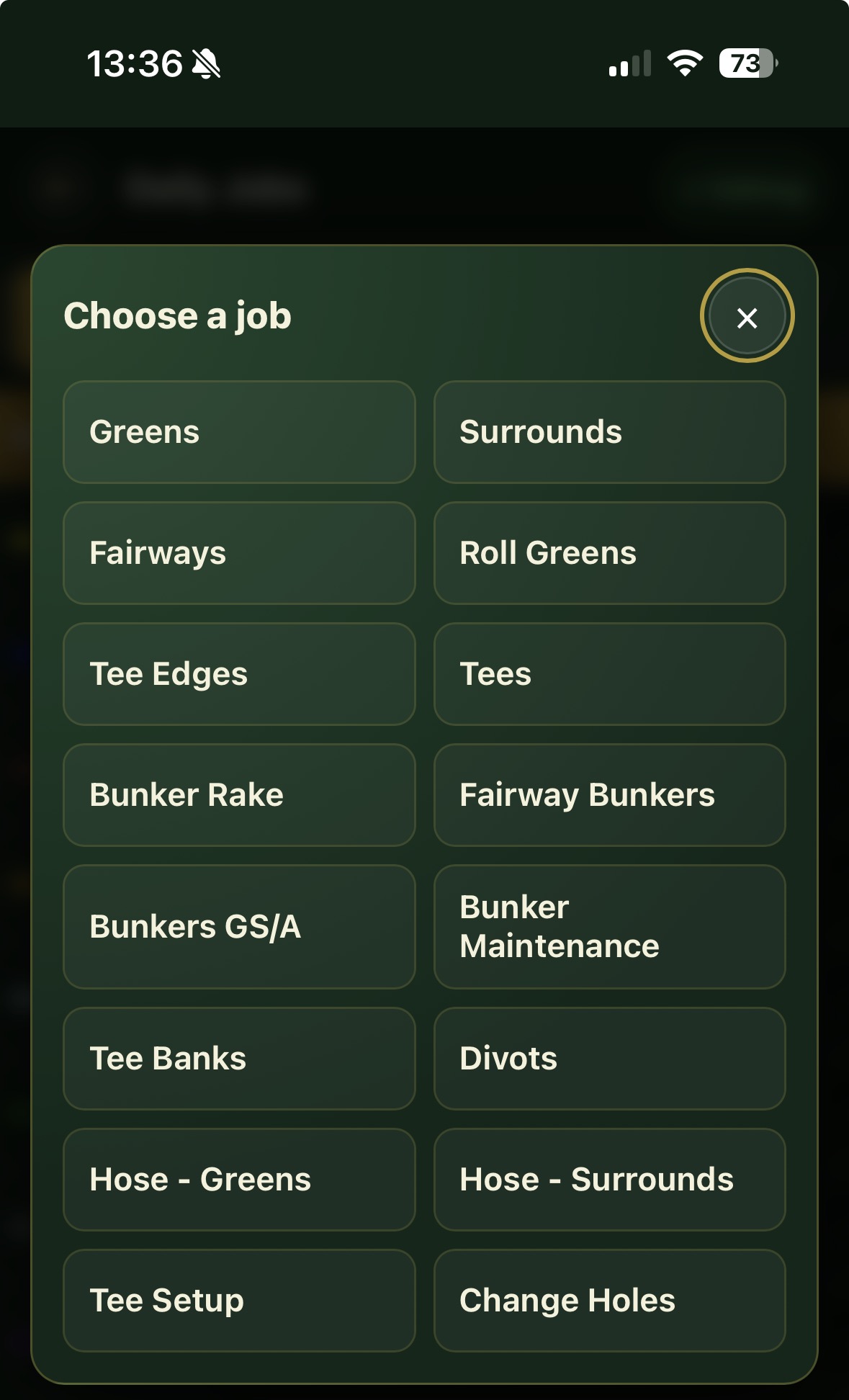
Tap the dropdown arrow beside a job box to open common greenkeeping tasks. Choose a shortcut or type a different instruction directly into the box.
Landscape mode shows the employee, AM task, vehicle and PM task together, which is useful during the morning team briefing.

Greens yield tracking
Record the volume collected from every green and let BunkerSync convert it into mL/m². Multiple vehicle and cut slots allow separate or shared rounds.
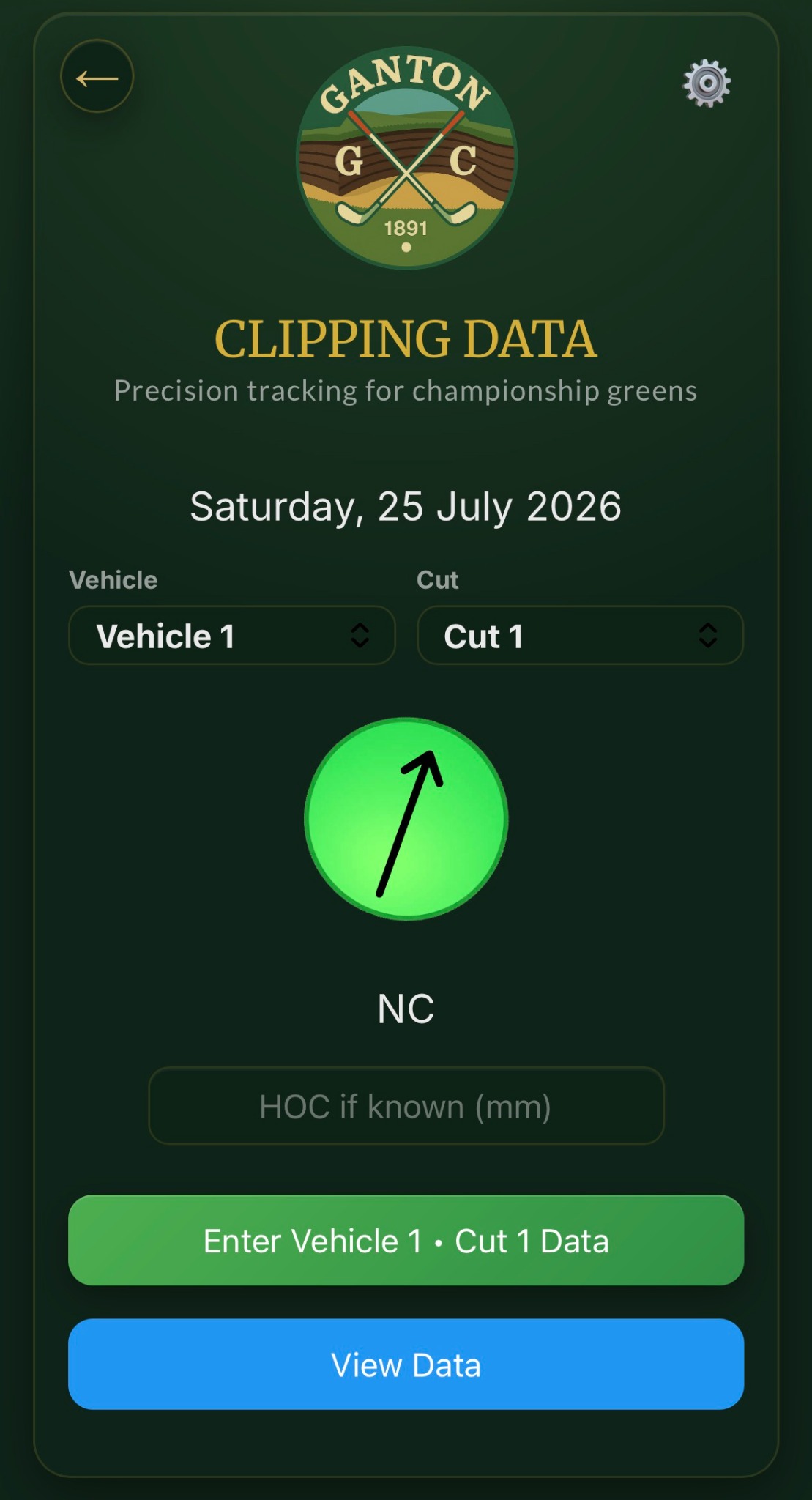
Tap the settings cog in the top-right corner.
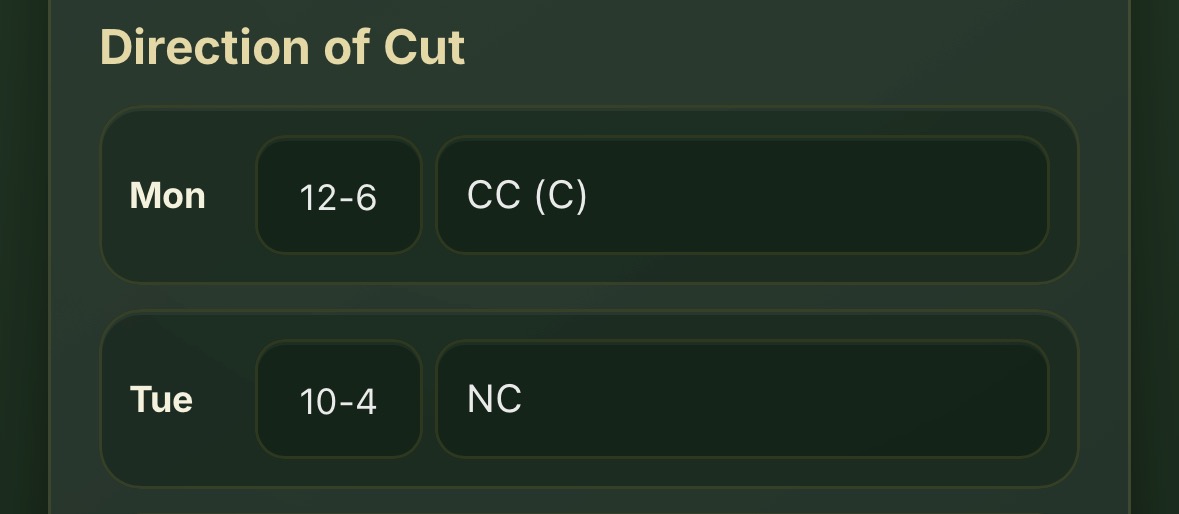
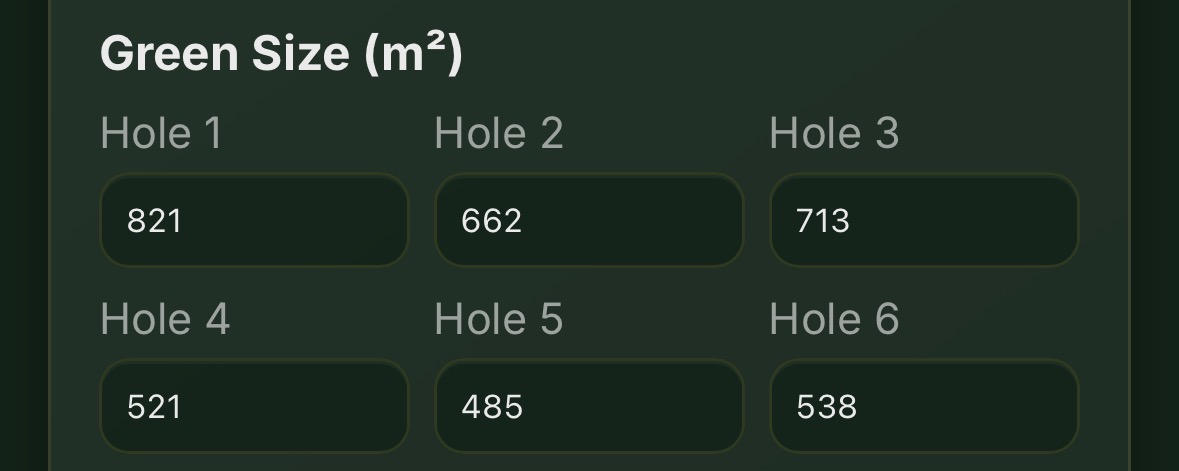
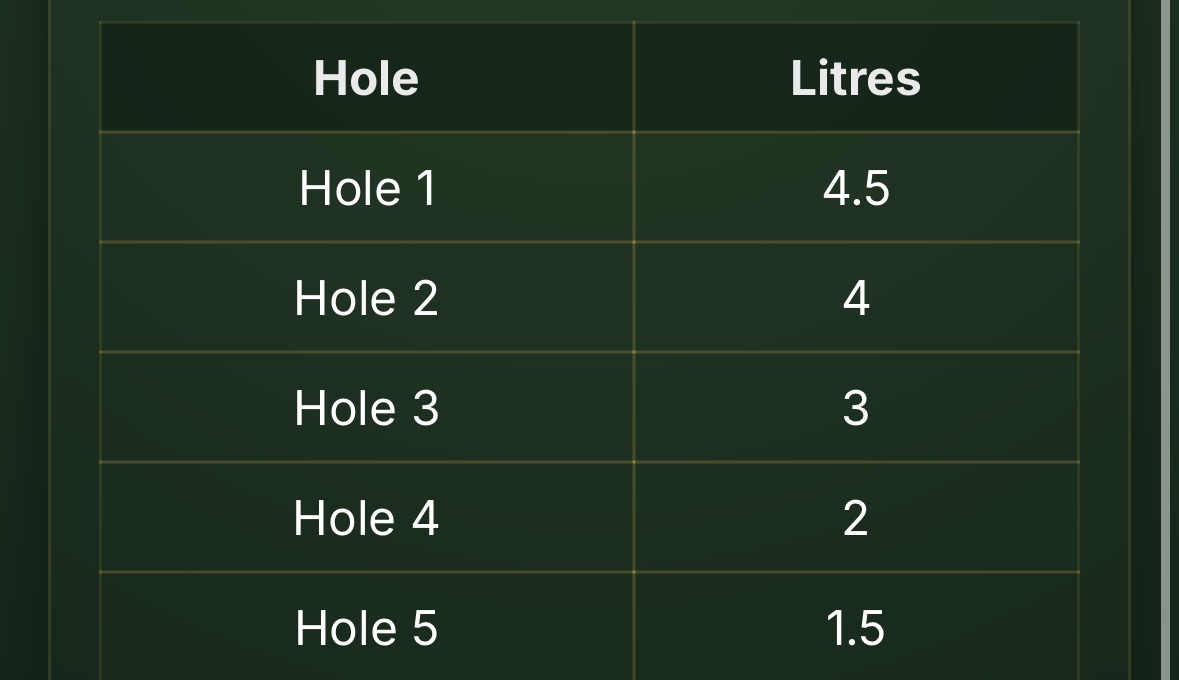
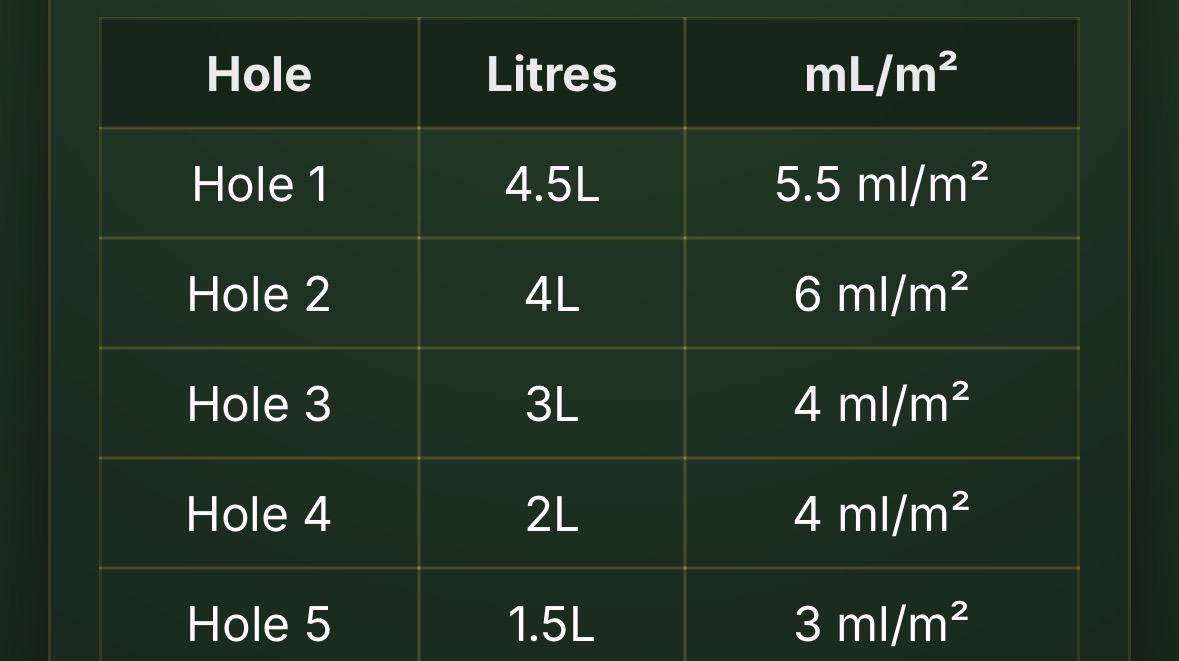
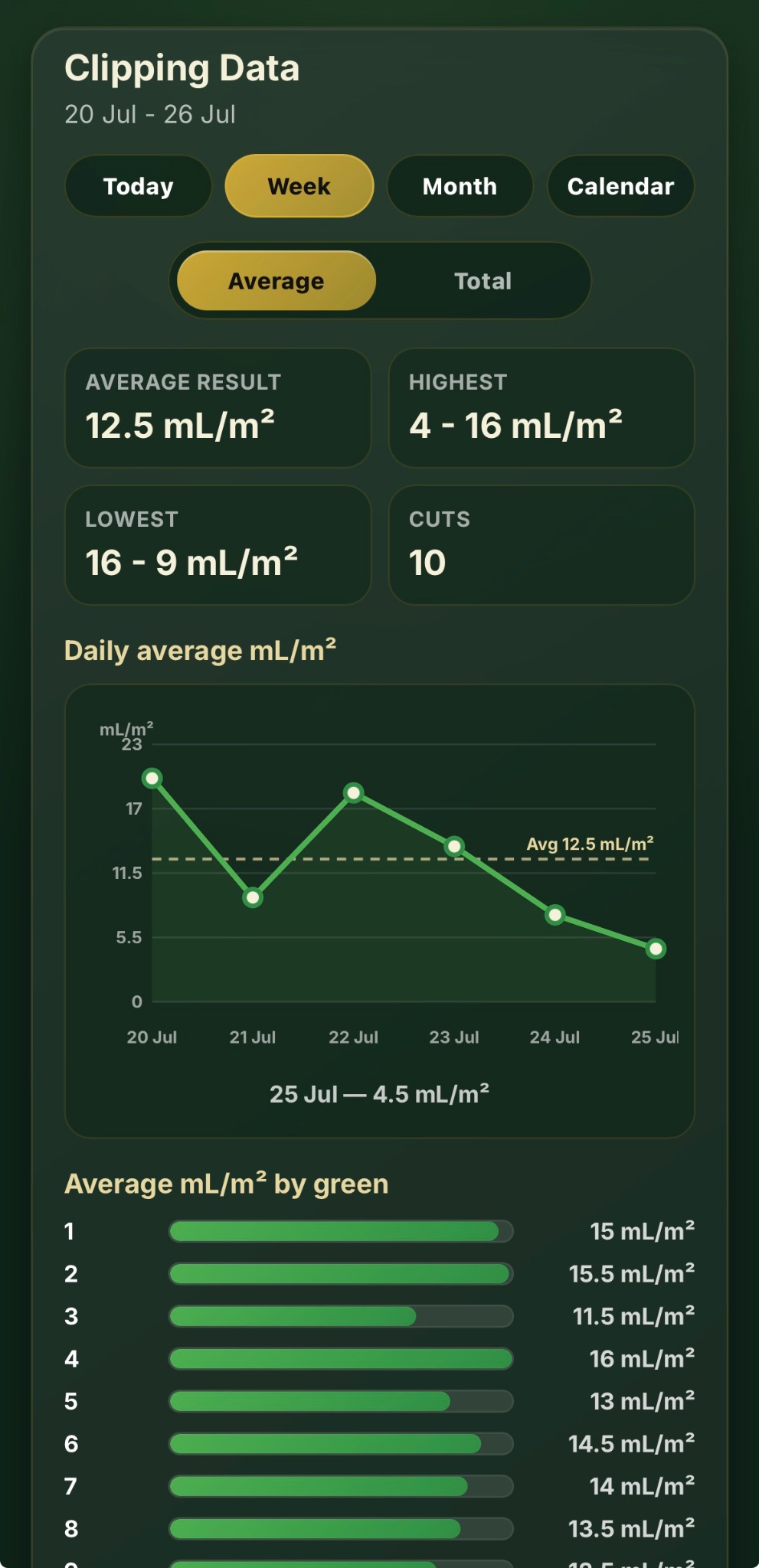
Tap View Data on the clipping home screen. Choose Today, Week, Month or Calendar and switch between Average and Total yield.
The data view includes summary figures, the number of cuts, a daily trend chart and a green-by-green comparison.
Mapped bunker work
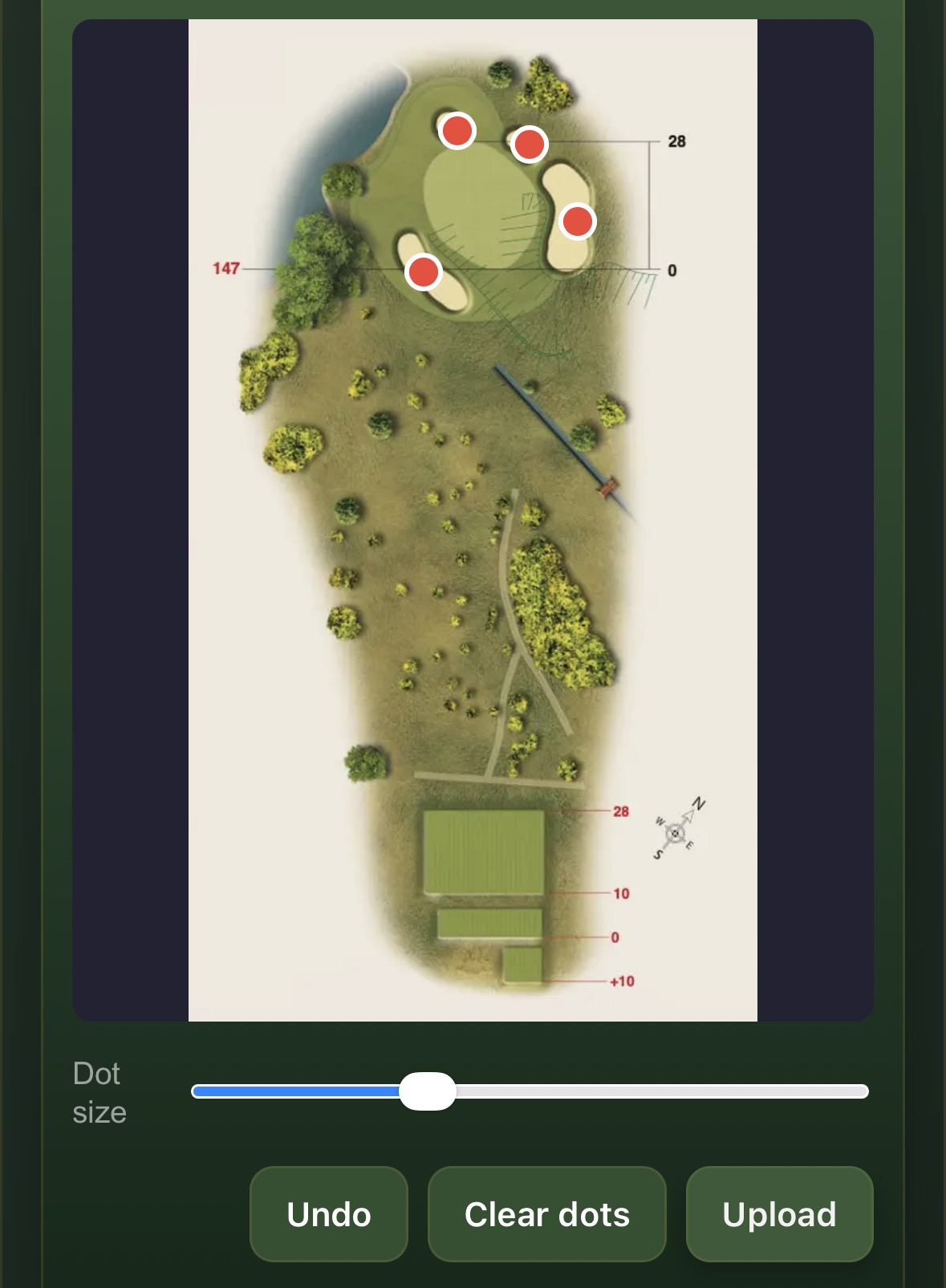
Assign work to the exact bunker, give it a priority and track progress using status dots on the hole map, hole tile and full-course map.
When individual hole maps are available, use tiles 1–18. Clubs without hole images can use the large course map.
The dots above each hole number summarise the current bunker statuses on that hole. The MAP tile summarises outstanding work placed on the full-course map.
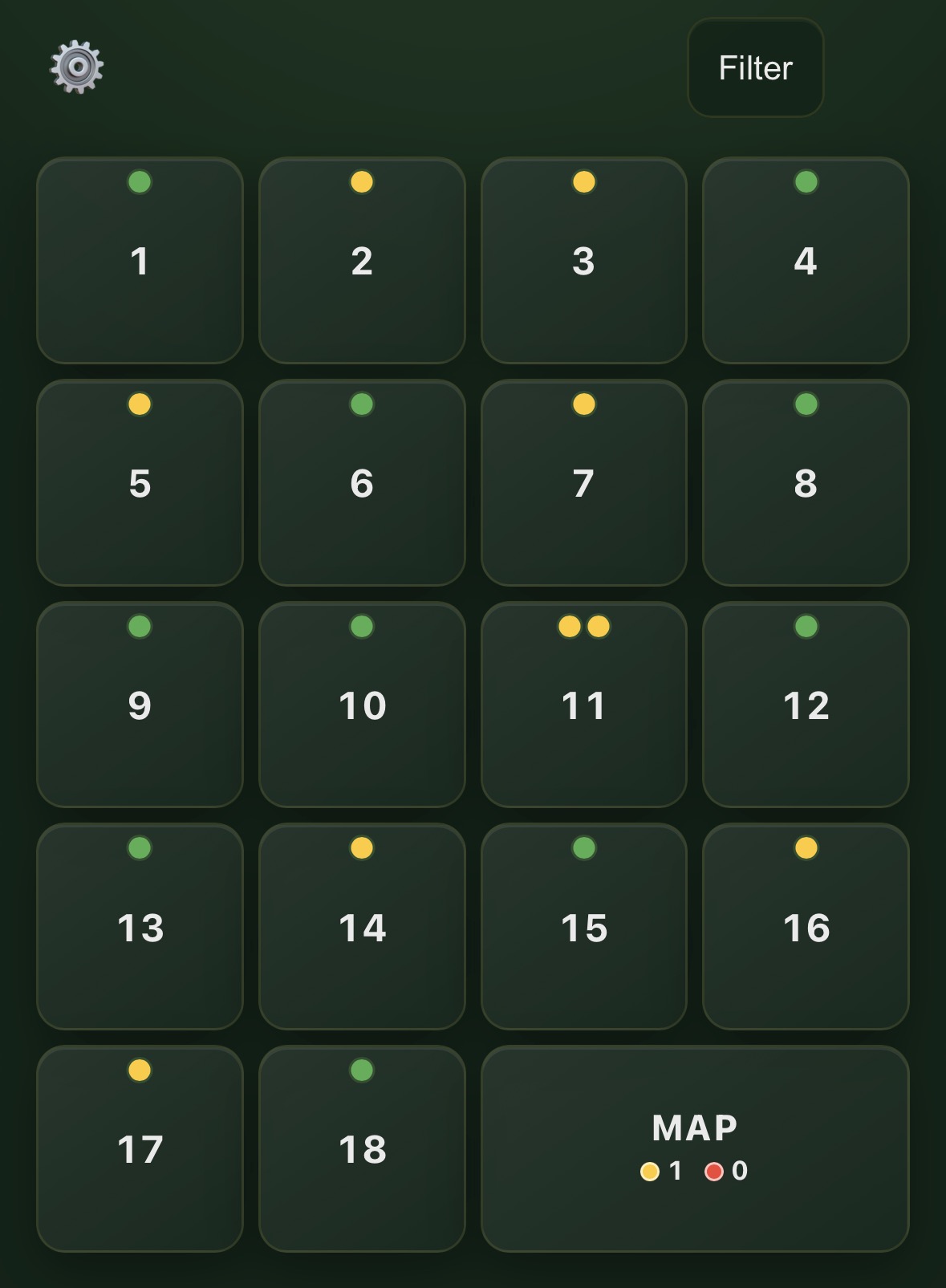
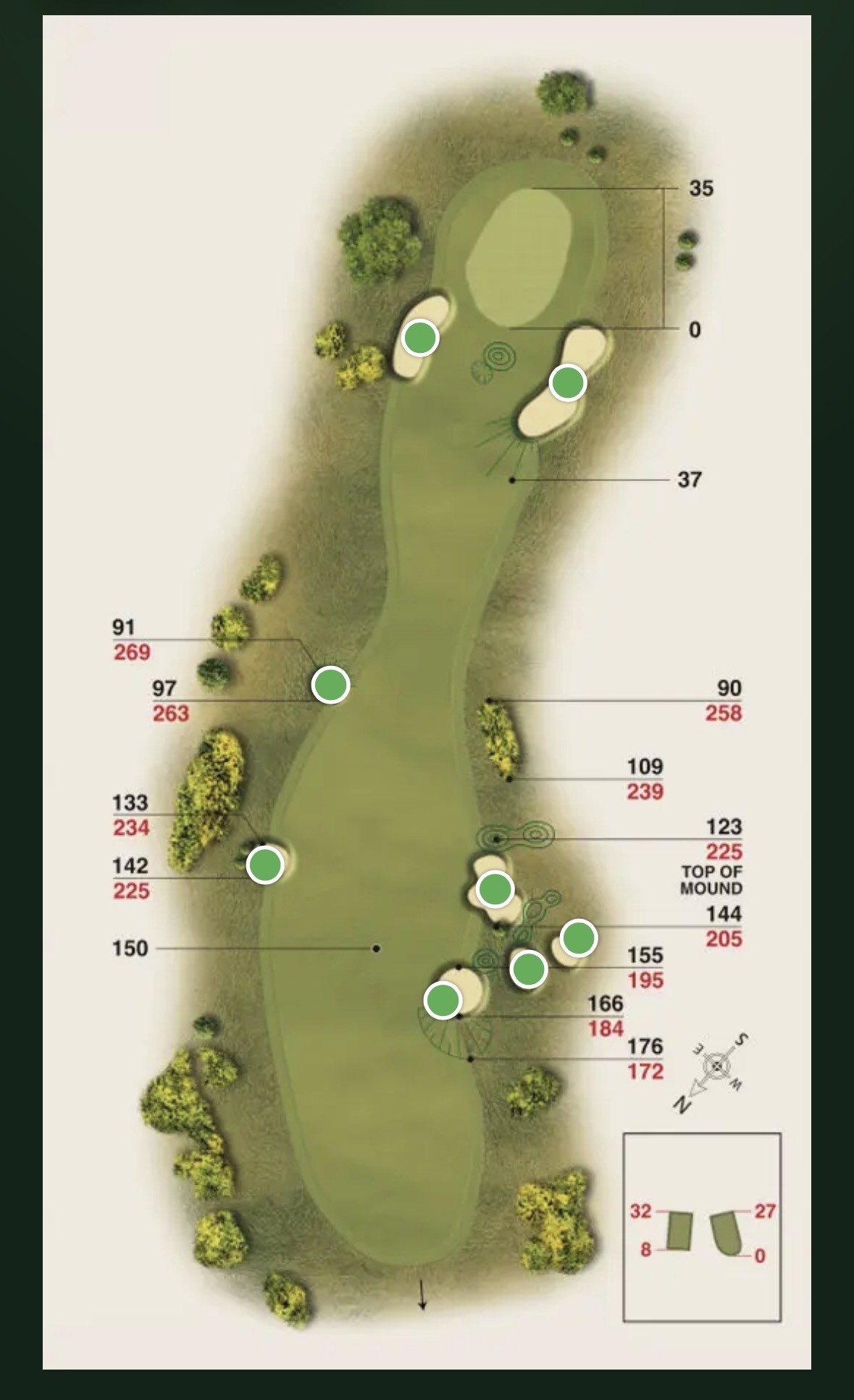
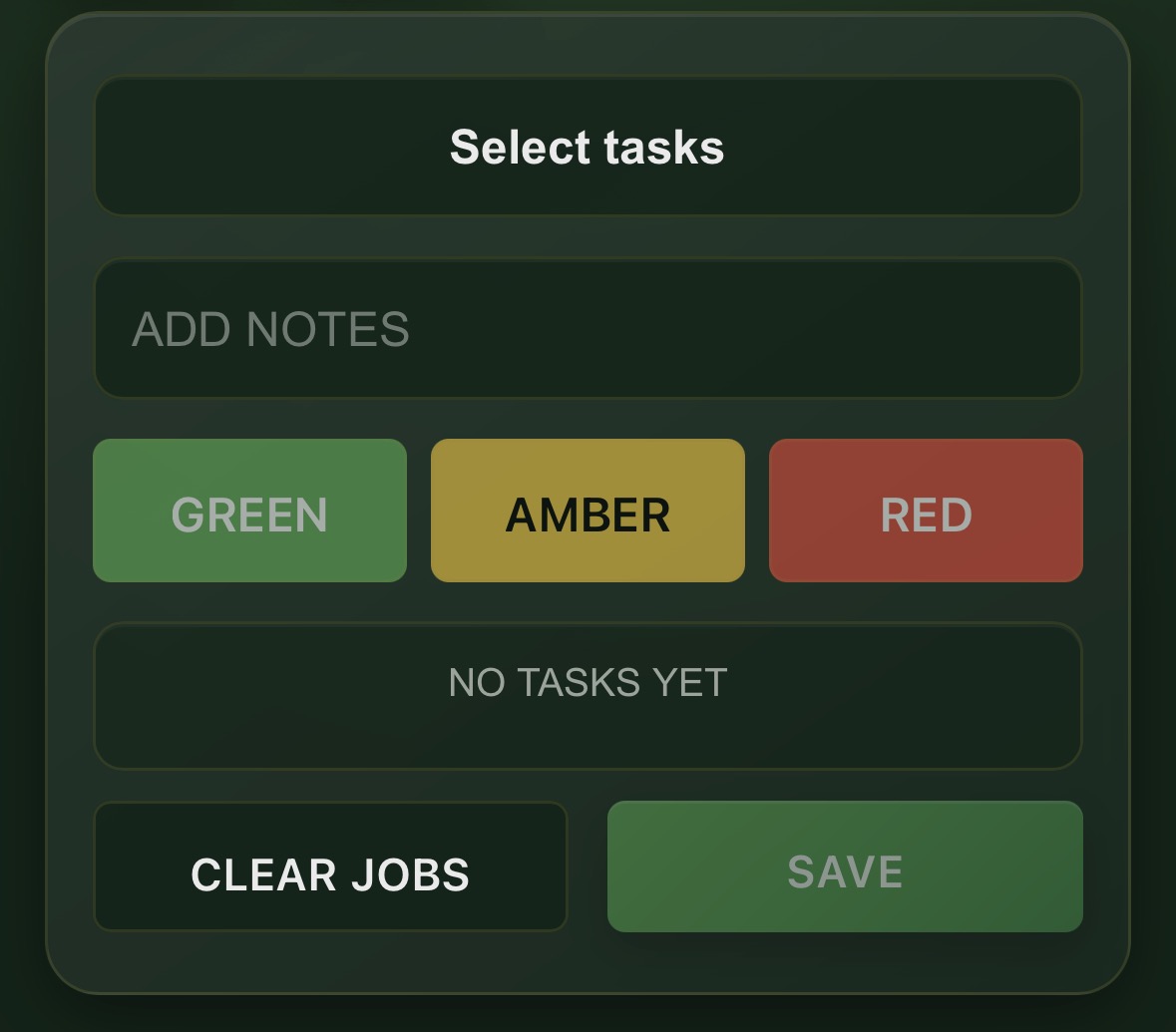
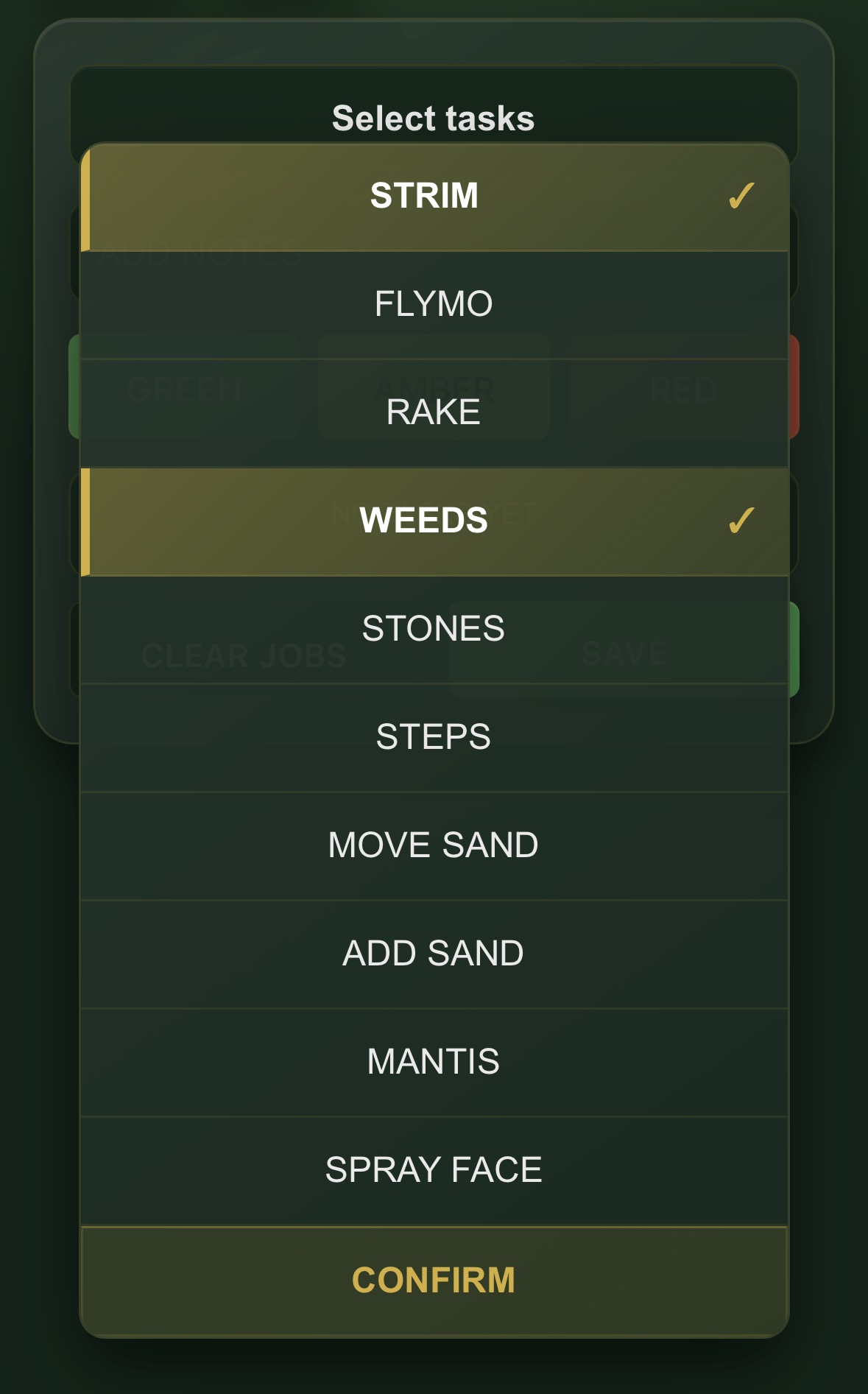
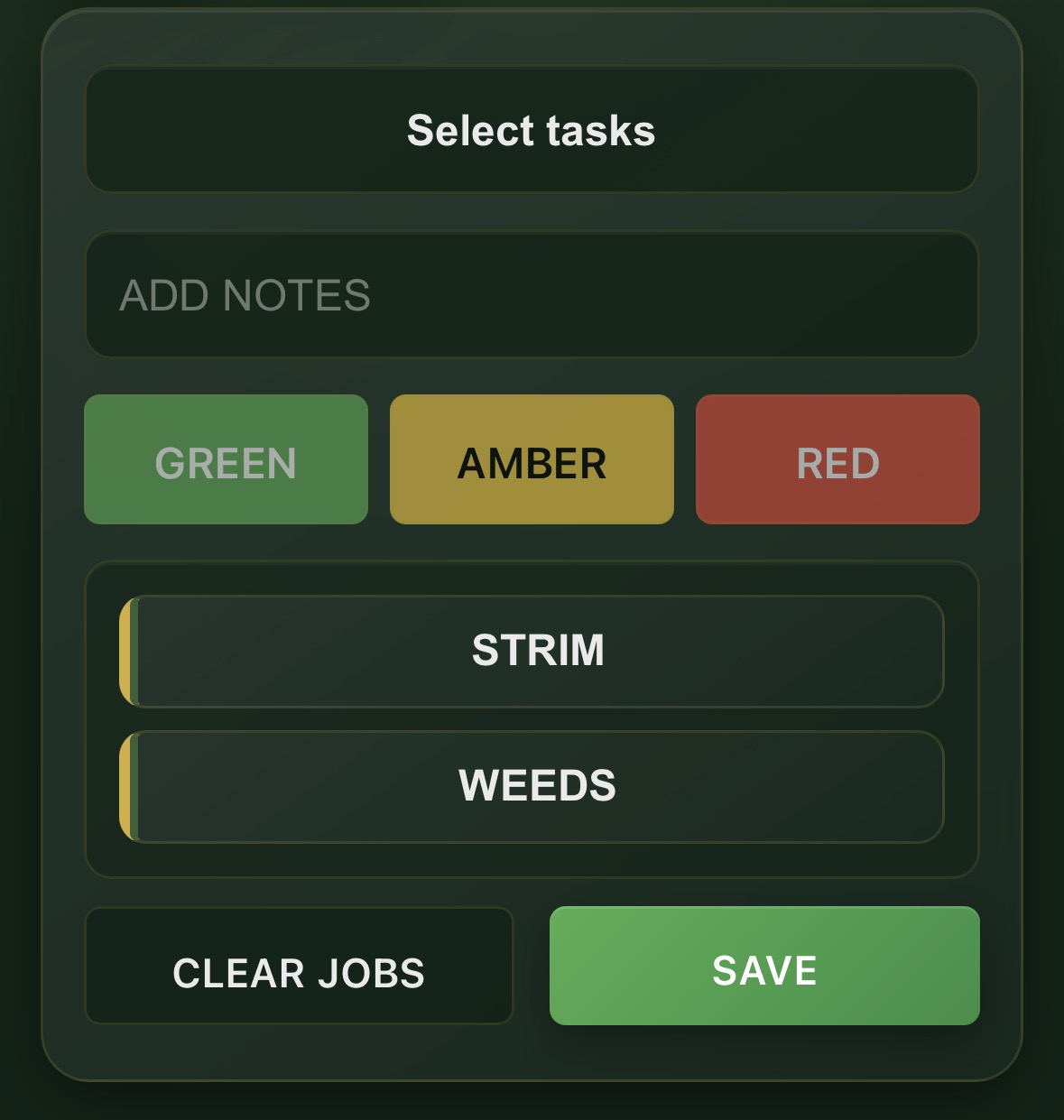
After saving, the dot on the map and the corresponding hole tile update immediately.
When the work is complete, open the bunker again and tap Clear Jobs. This removes the outstanding tasks and returns the bunker to green.
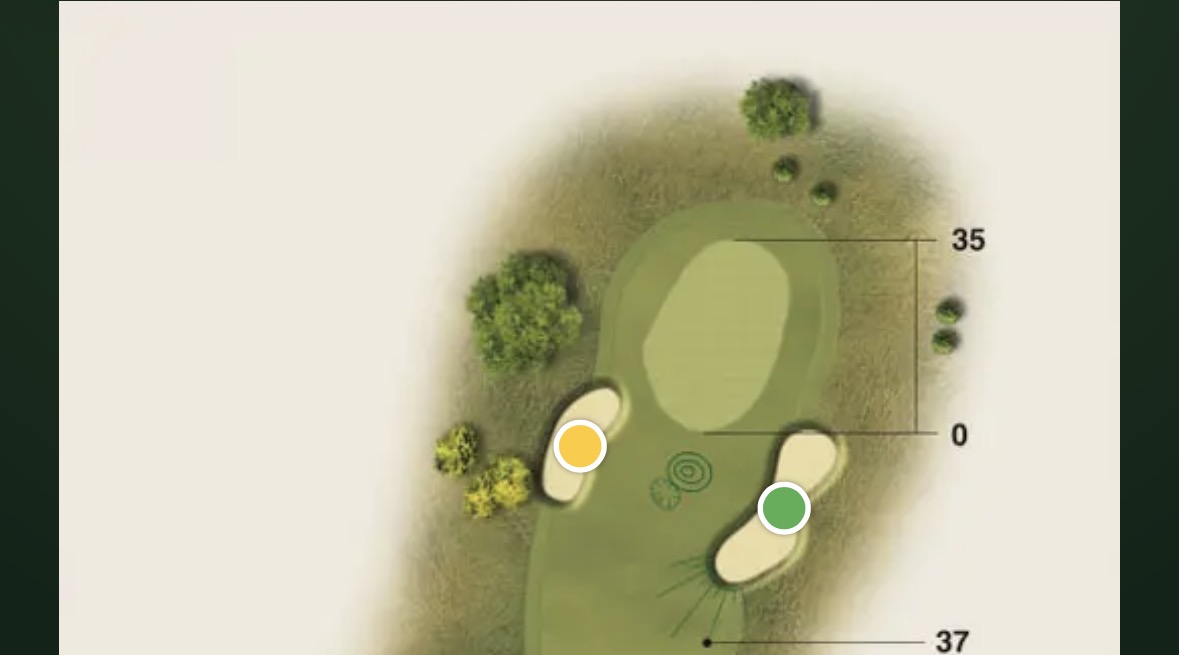
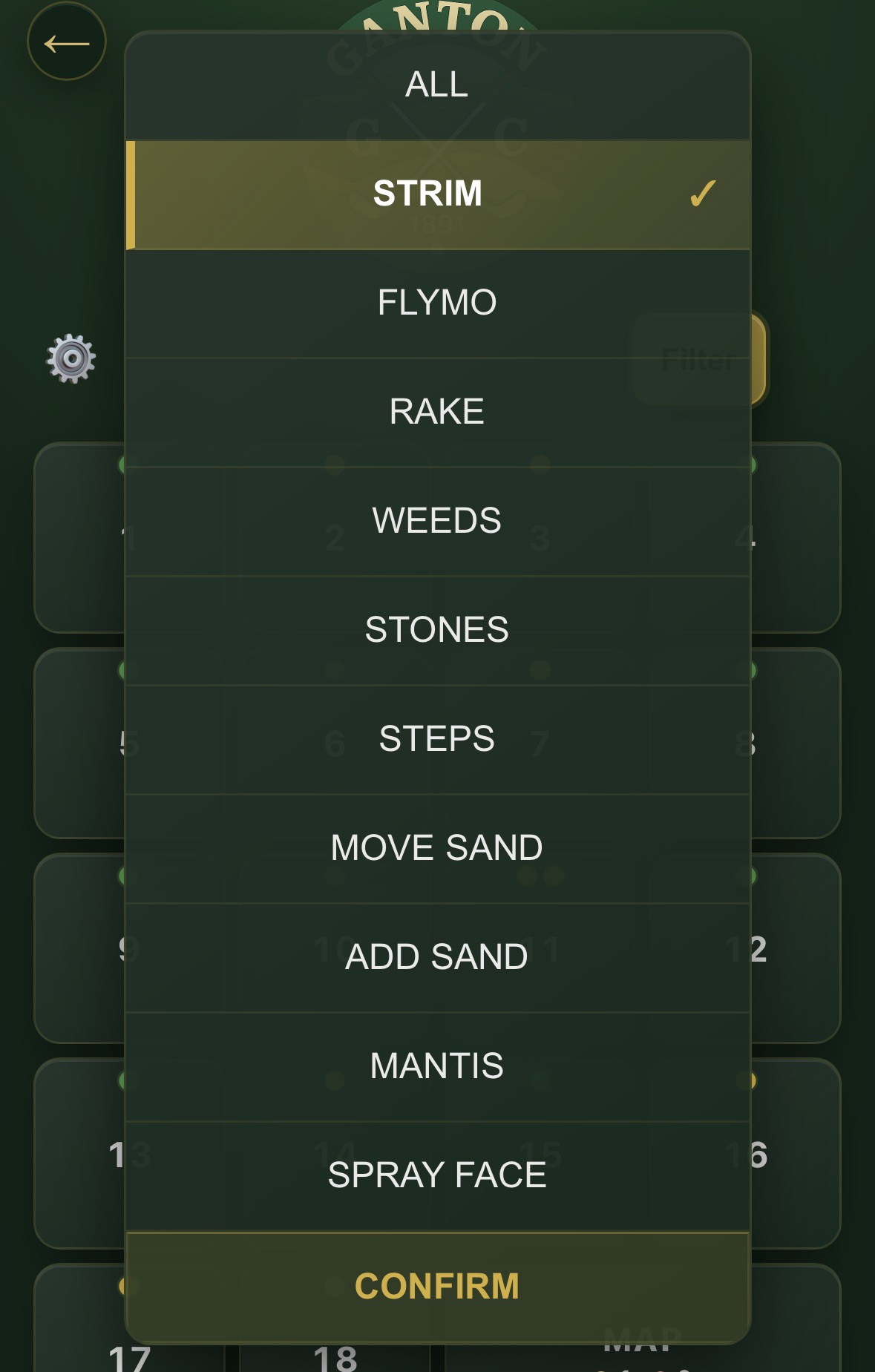
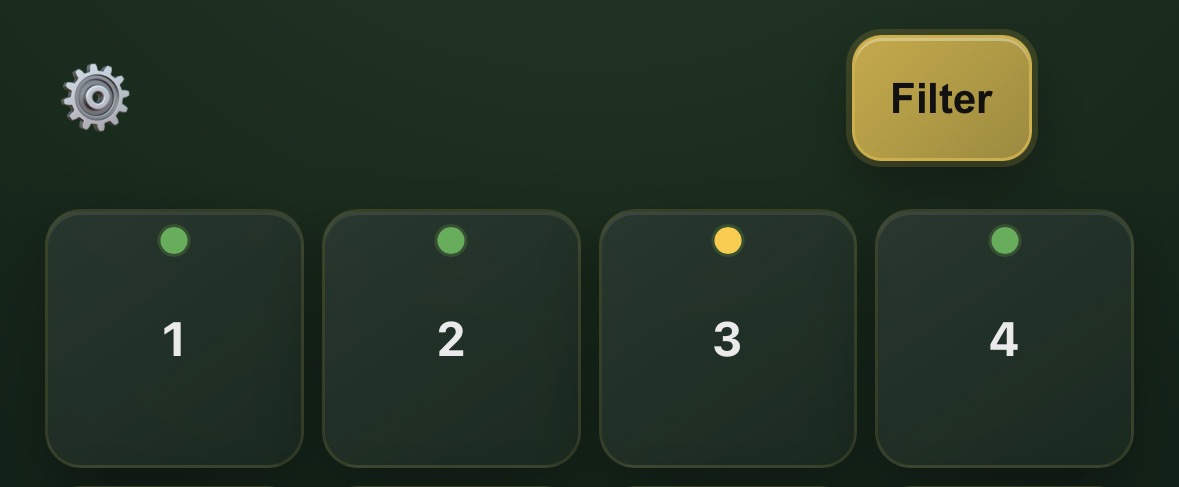
The Filter button turns gold while a filter is active, making it clear that the screen is not showing every outstanding job.
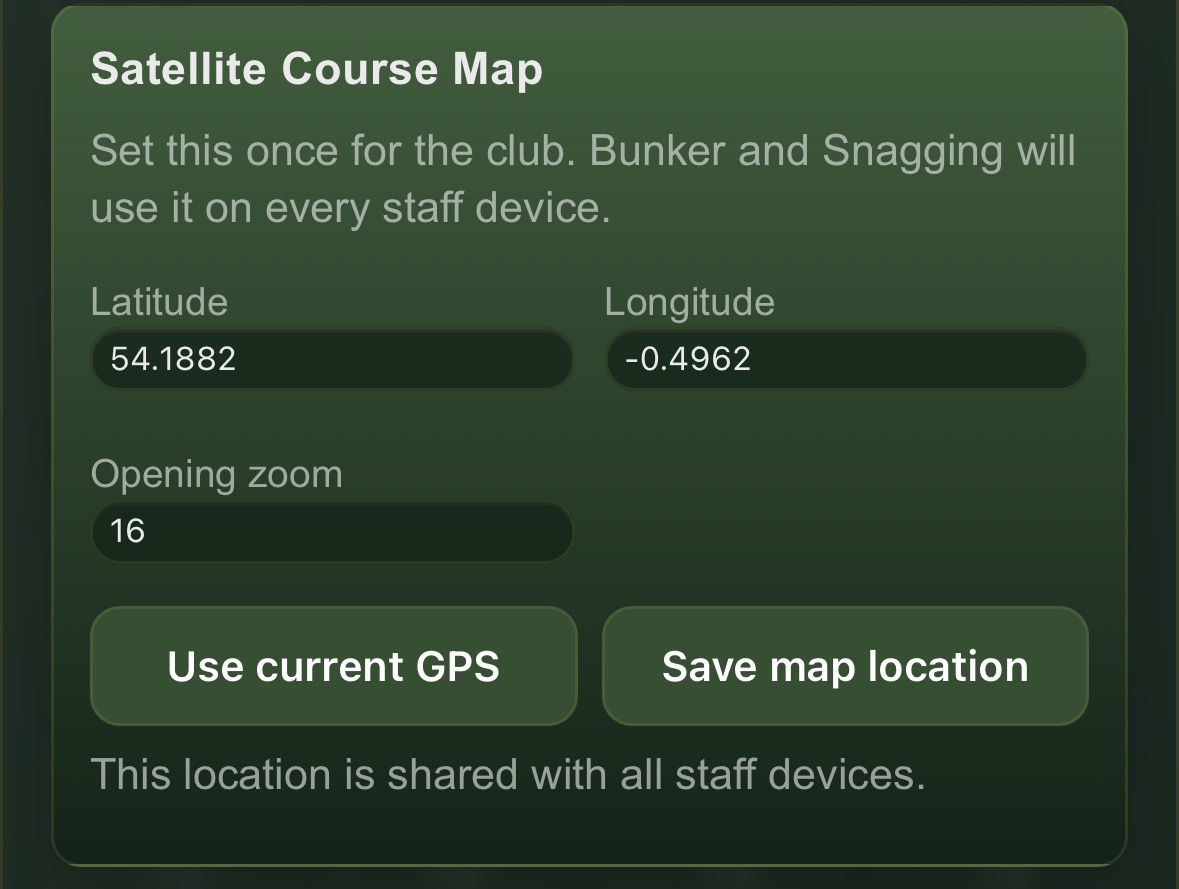
Open the Bunker settings using the cog in the top-left corner.
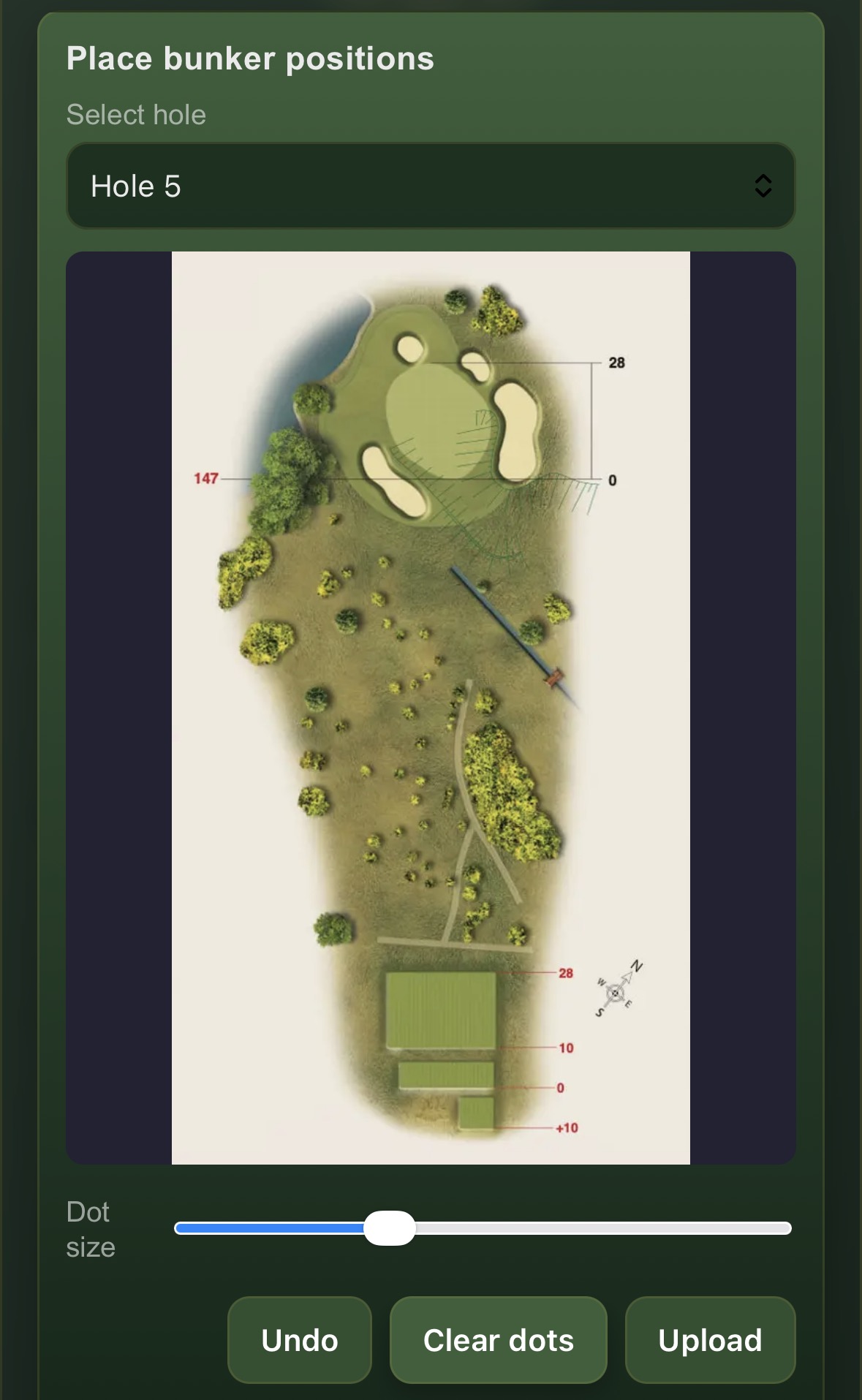
This shared location is used on every staff device and is also used by the Snagging App.
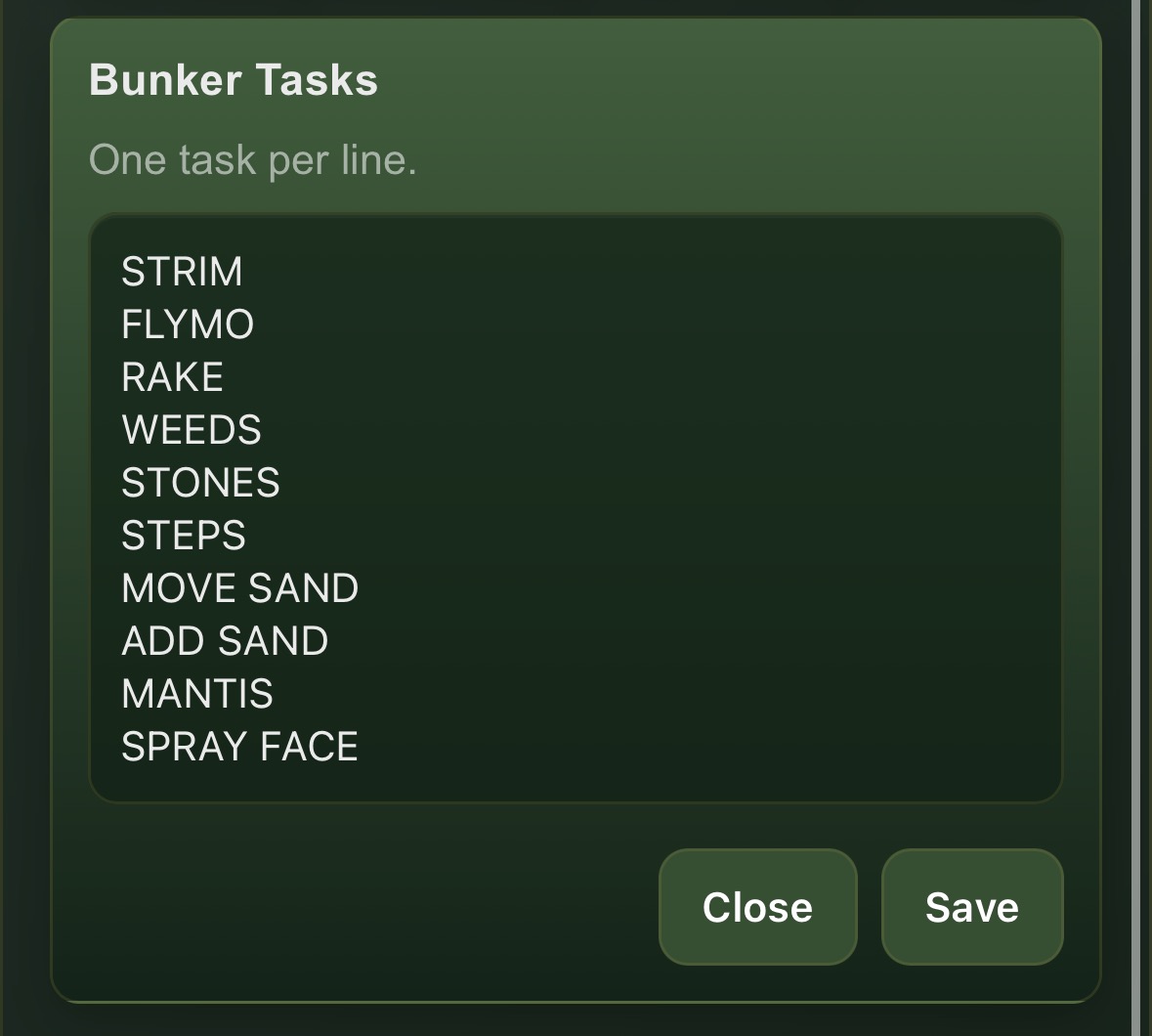
Enter one task per line and tap Save. The updated list then appears in the bunker task selector.
Course issues
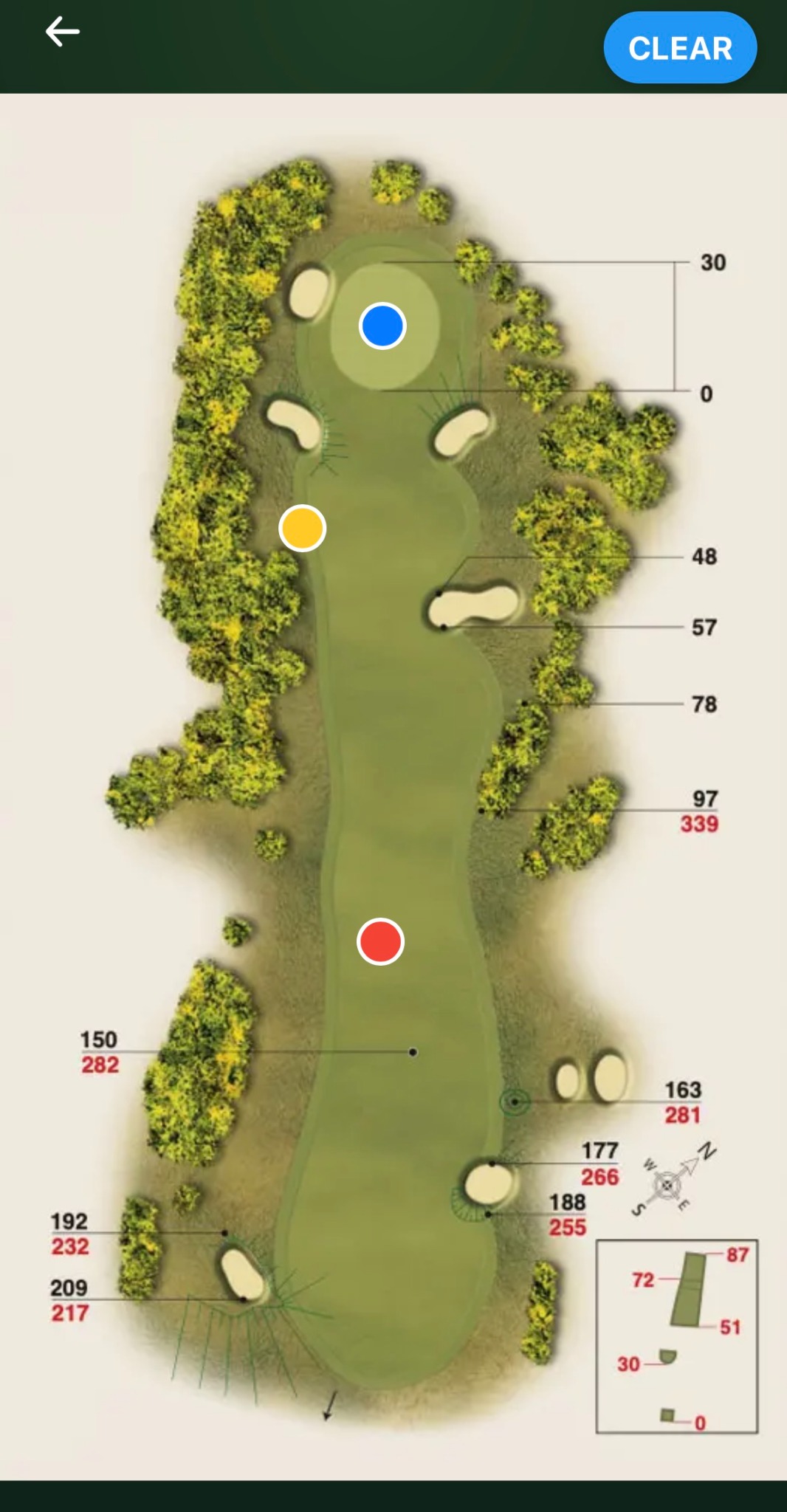
Drop a pin exactly where an issue has been found, add its details and status, then keep completed jobs visible in blue until they are cleared.
The full-course map location saved in Bunker Maintenance is shared with Snagging, so it only needs to be configured once.
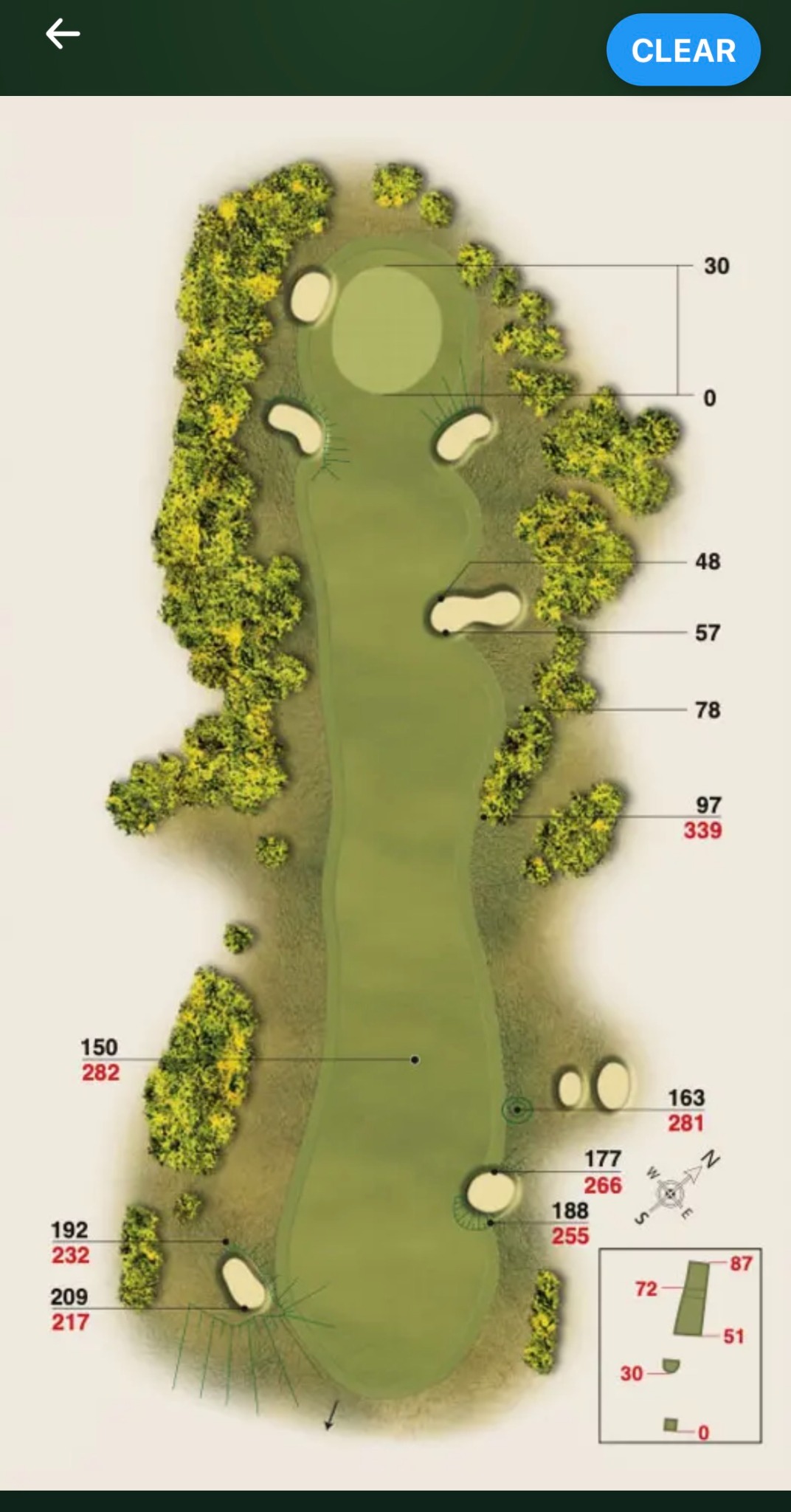
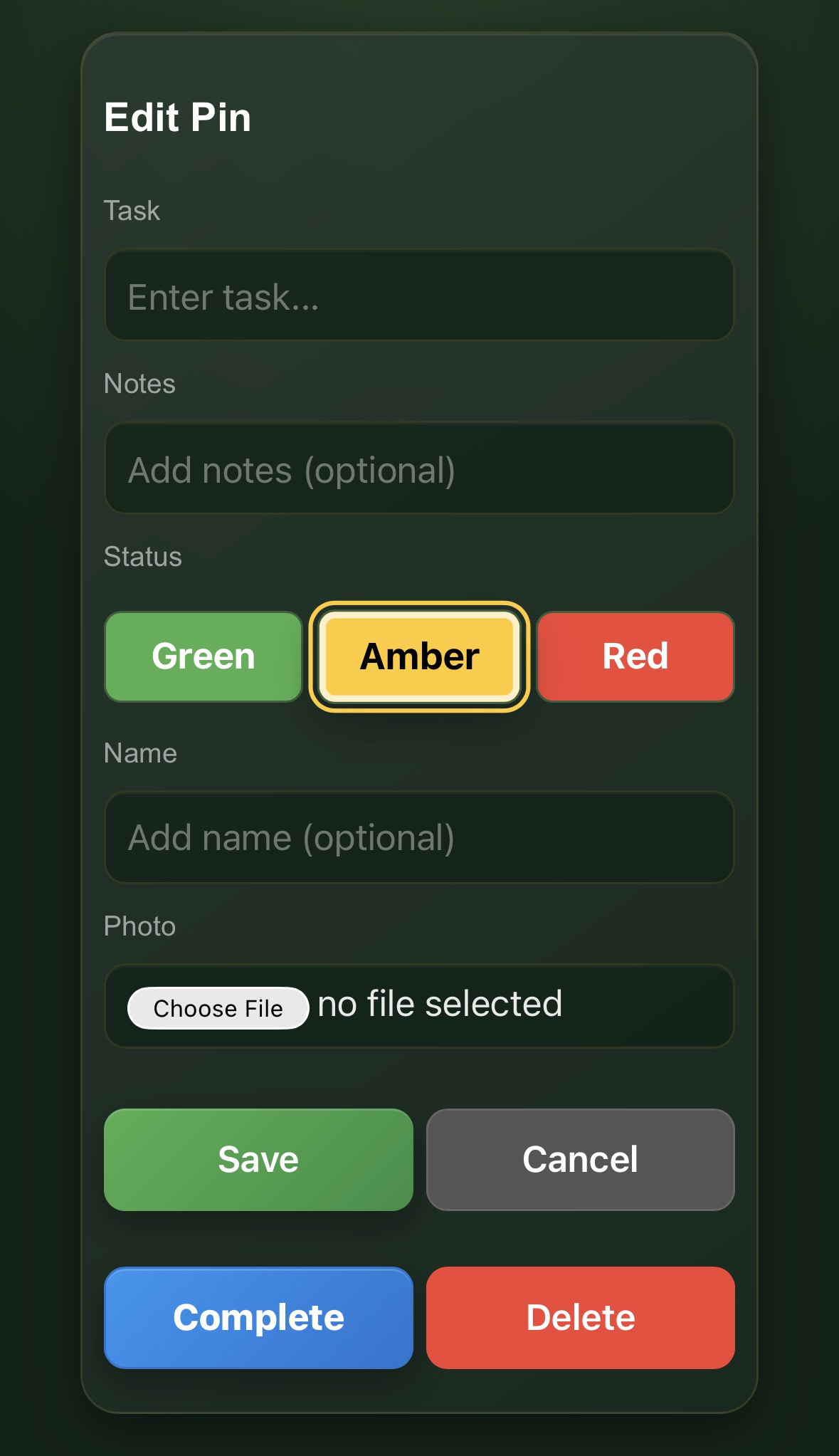
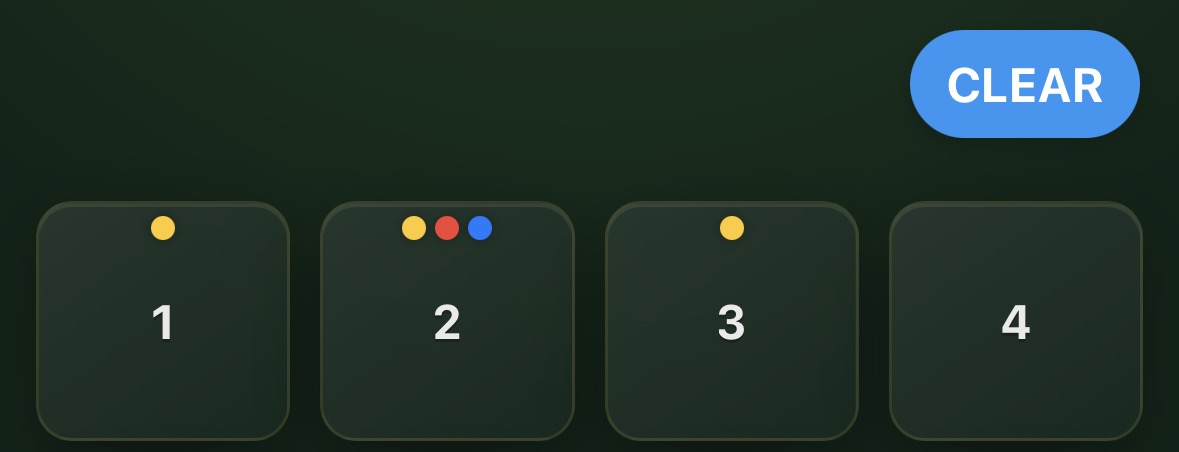
Saved pins appear on the map and their status colours appear on the hole tiles.
Today's play
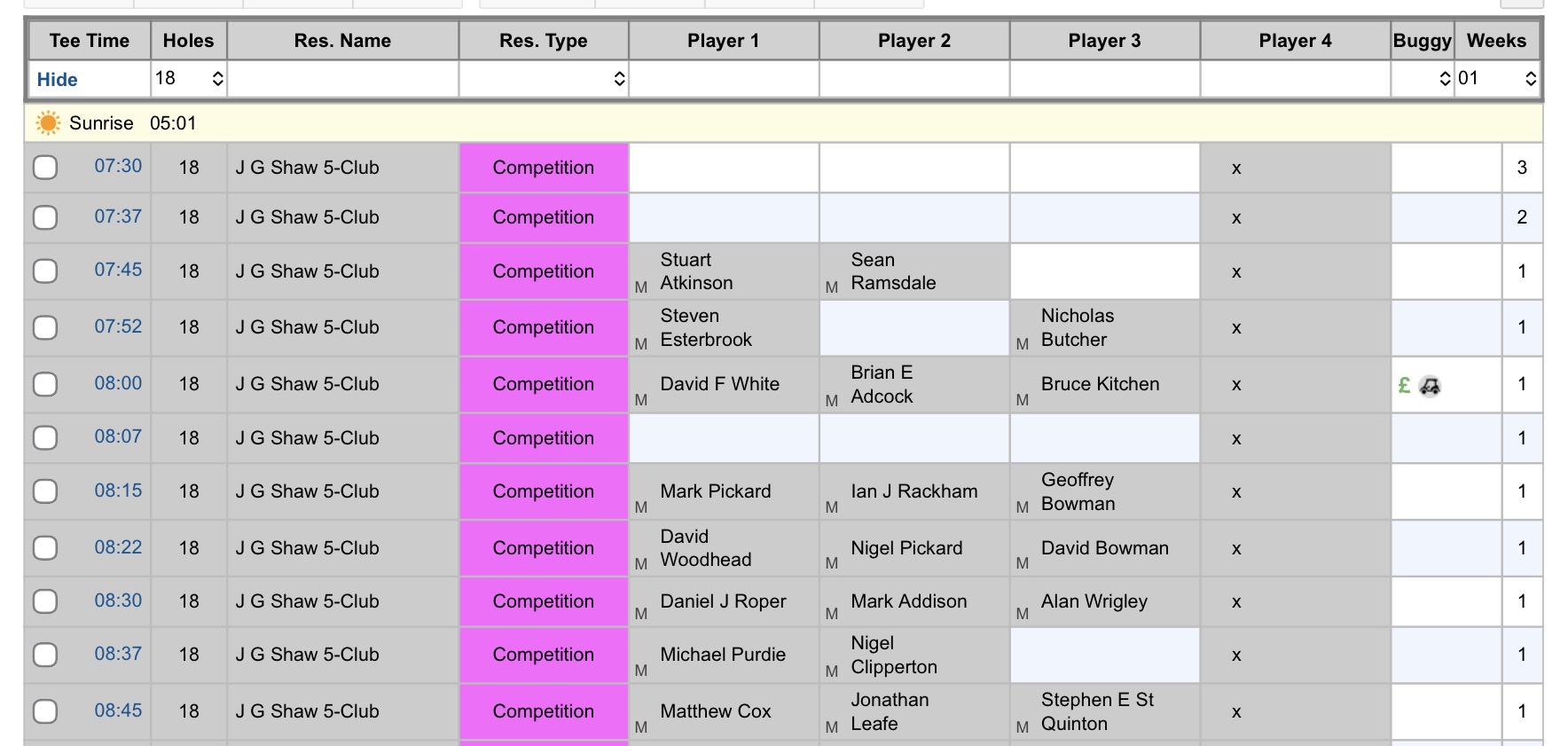
Give the greenkeeping team quick access to the day's tee times using either a temporary uploaded image or the club's own tee-sheet link.
When admin mode is active, tap Upload photo and choose a photo or screenshot of the day's tee sheet. The current uploaded image is replaced when a new one is added and expires automatically at midnight.
Paste the full tee-sheet address in Team Hub Settings → Links & Sheets. Staff can then use the Tee Sheet tile to open the club system directly.
At-a-glance status
The Team Hub tiles do more than open each module. They show the latest useful information directly on the home screen, helping the team spot faults, outstanding work, holidays, clipping results and rainfall without opening every app.
Status information updates from the shared club data. Tap any tile to open the full module and view or update the underlying records.
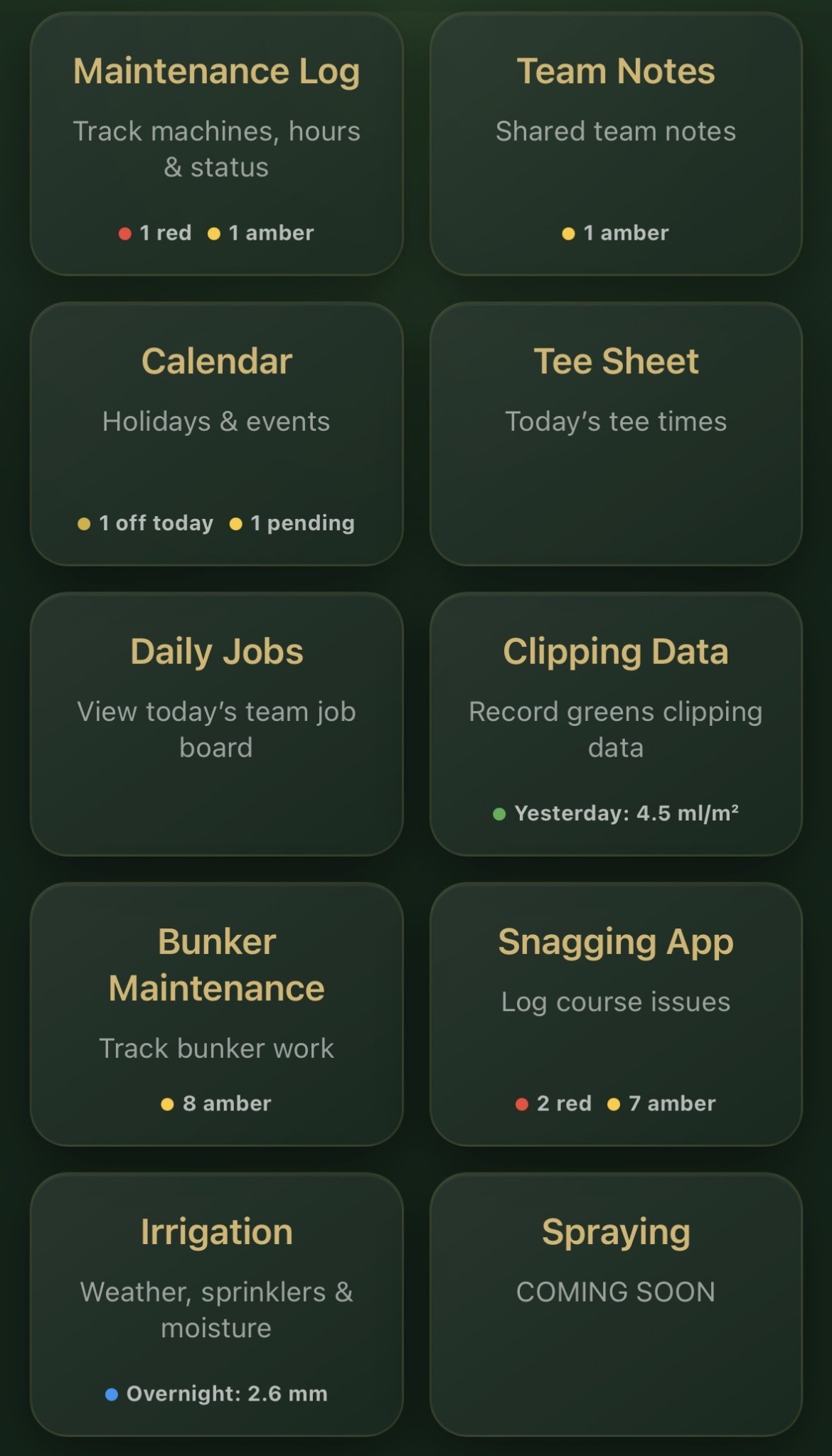
Shows the number of active Red and Amber machines, making vehicle faults visible to the whole team.
Shows active priority notes by colour, so important shared messages are not missed.
Shows how many team members are off today. When an administrator is signed in, it also shows pending holiday requests.
Opens today's uploaded tee-sheet image or the club's connected tee-sheet system.
Opens the current team job board. This tile is deliberately kept clear because the selected day's assignments and update information are shown inside the module.
Shows the latest completed clipping result in mL/m², including the day it relates to.
Shows the total outstanding Amber and Red bunker jobs recorded across the course.
Shows the number of active Red and Amber course issues still requiring attention.
Shows the recorded overnight rainfall, while the full module contains weather, mapping, faults, coverage and stock tools.
Displays Coming Soon until the spraying module is enabled for the club.
Shared messages
Use Team Notes for short information that the whole team should see but which does not need to be placed on the Daily Jobs board or calendar.
The priority gives the note a clear coloured marker so important messages stand out.
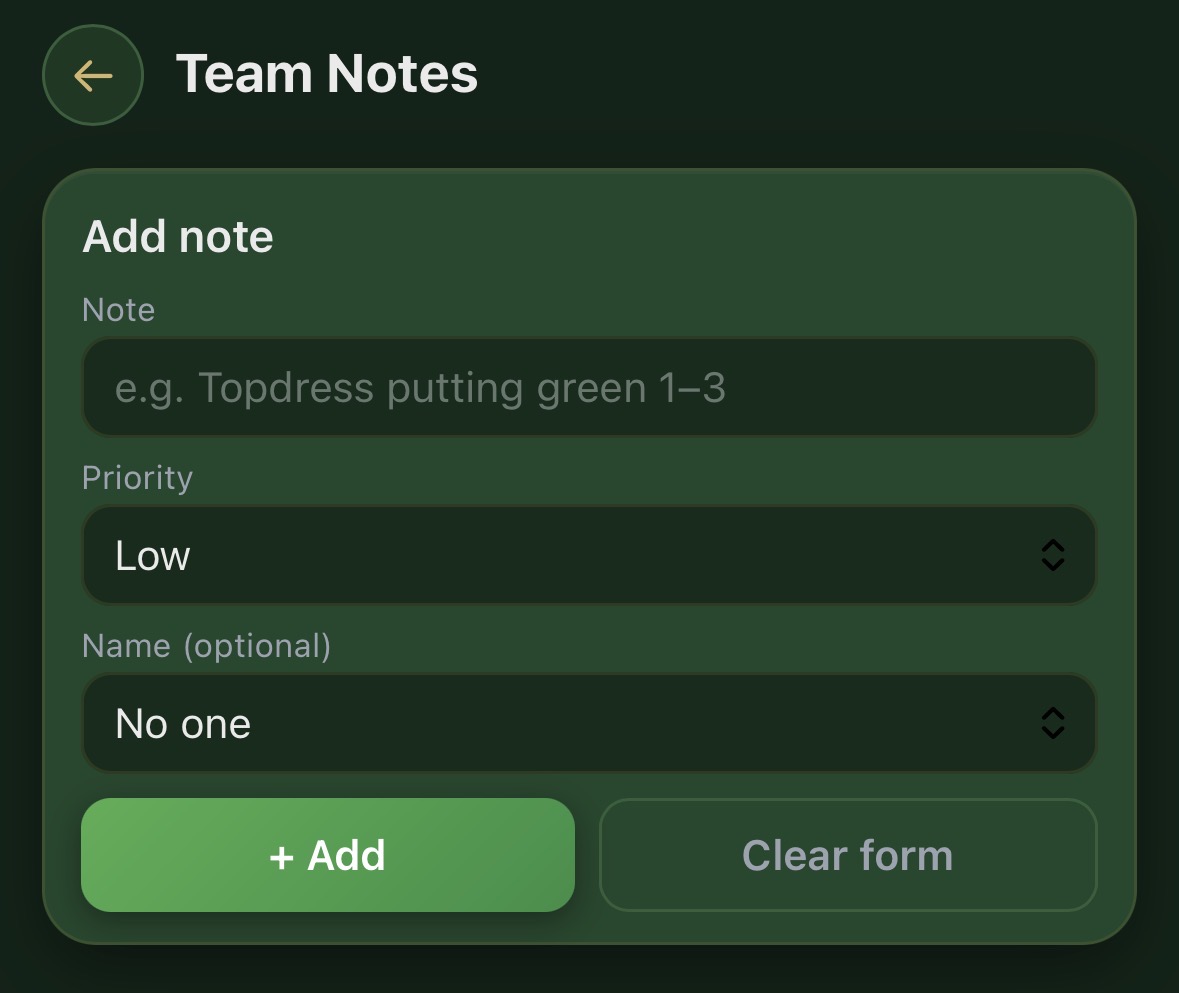
Published notes appear in the shared list underneath the form. Each one shows its priority colour, message and optional name. Tap the X when a note is no longer needed.

Advanced course mapping
Build a shared visual record of the irrigation system, record faults, view sprinkler coverage and optionally connect installed assets to the club's stock inventory.
The home screen brings together course weather, the irrigation map, open faults and stock. Weather can use a local forecast or be connected to a supported on-site weather station.
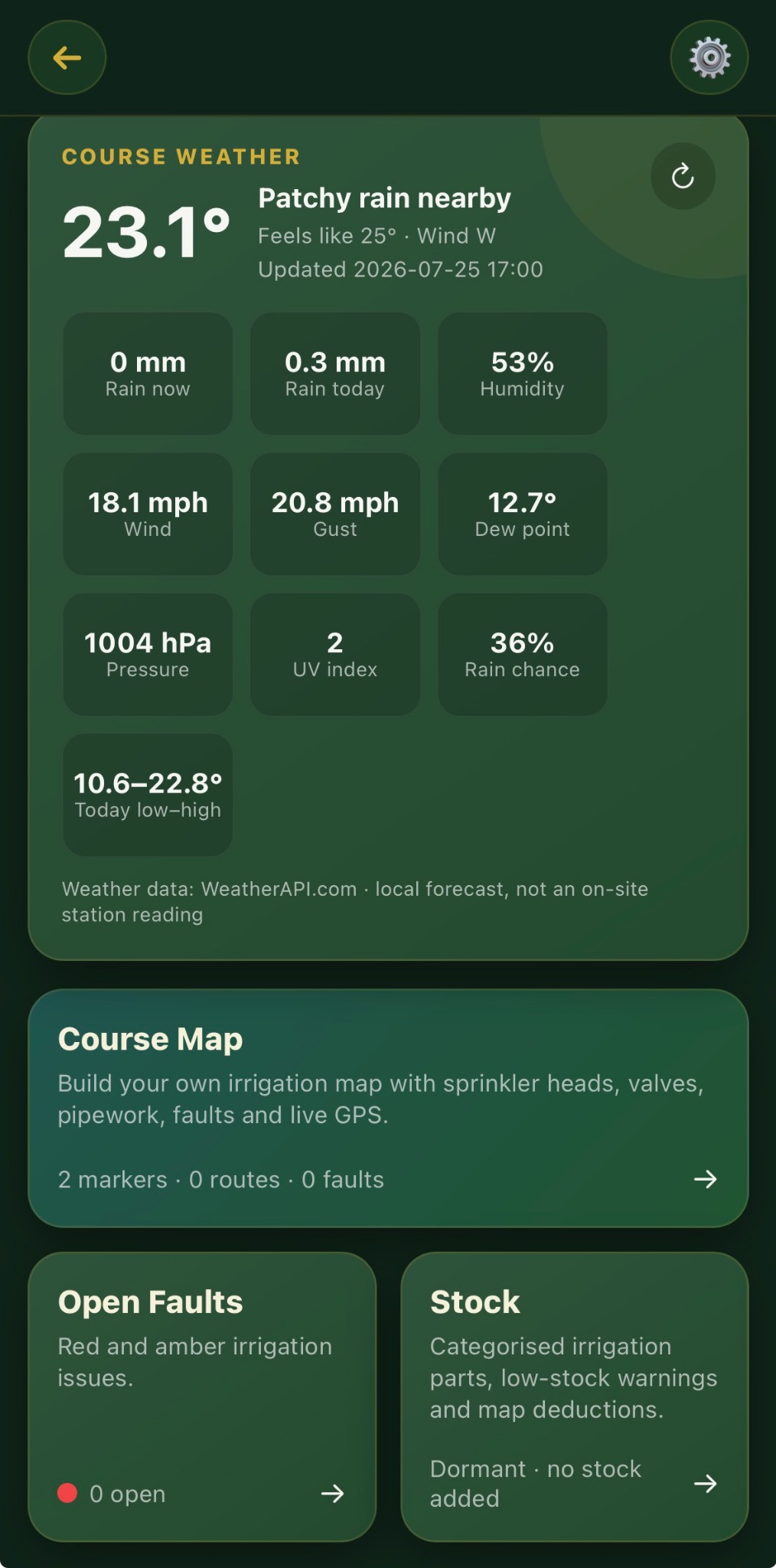
The saved position centres the course map and is used to retrieve local weather.
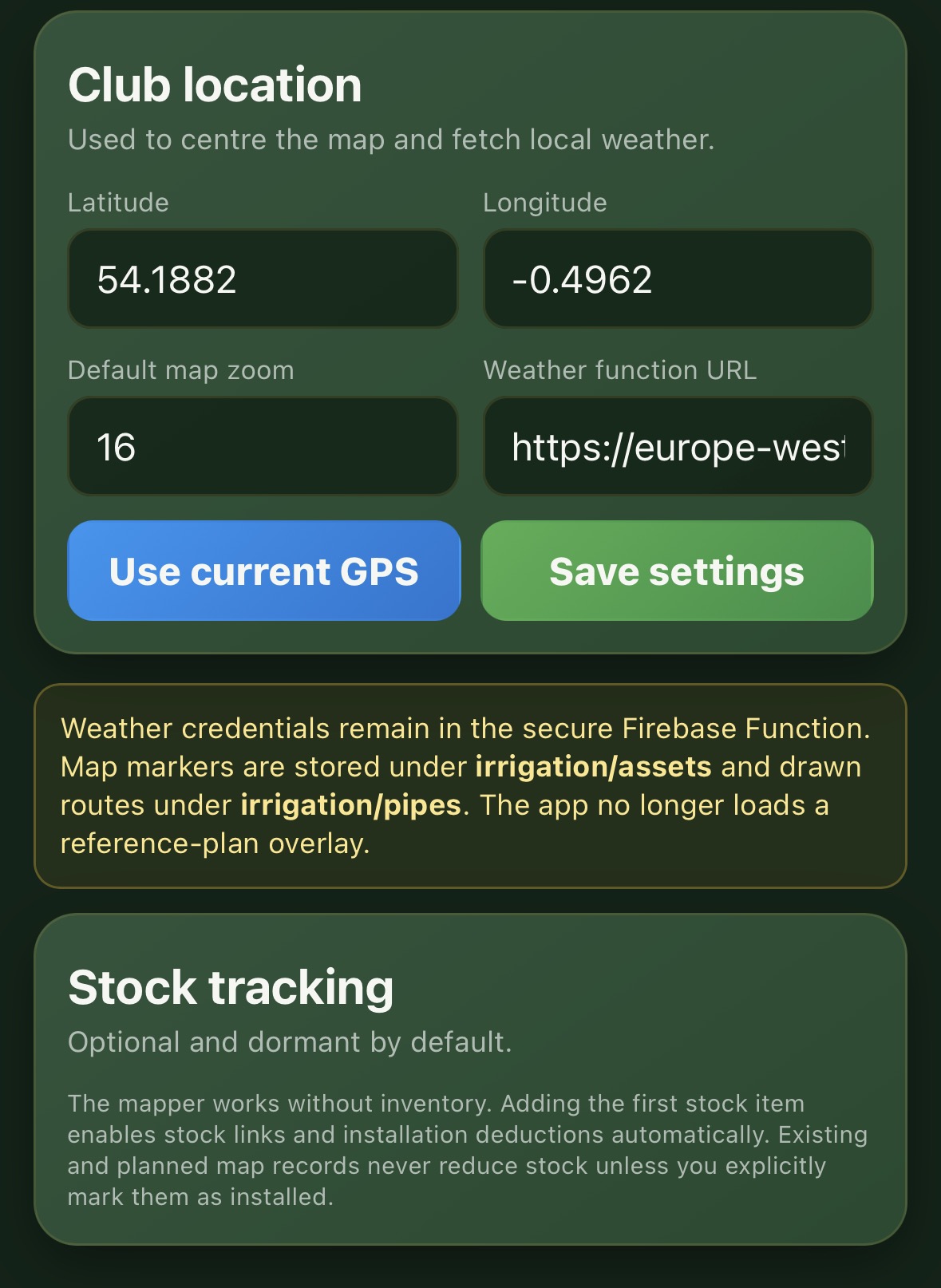
Tap Course Map from the dashboard. The aerial map is ready for sprinkler heads, valves, pipework, controllers, cables, joints and other assets.
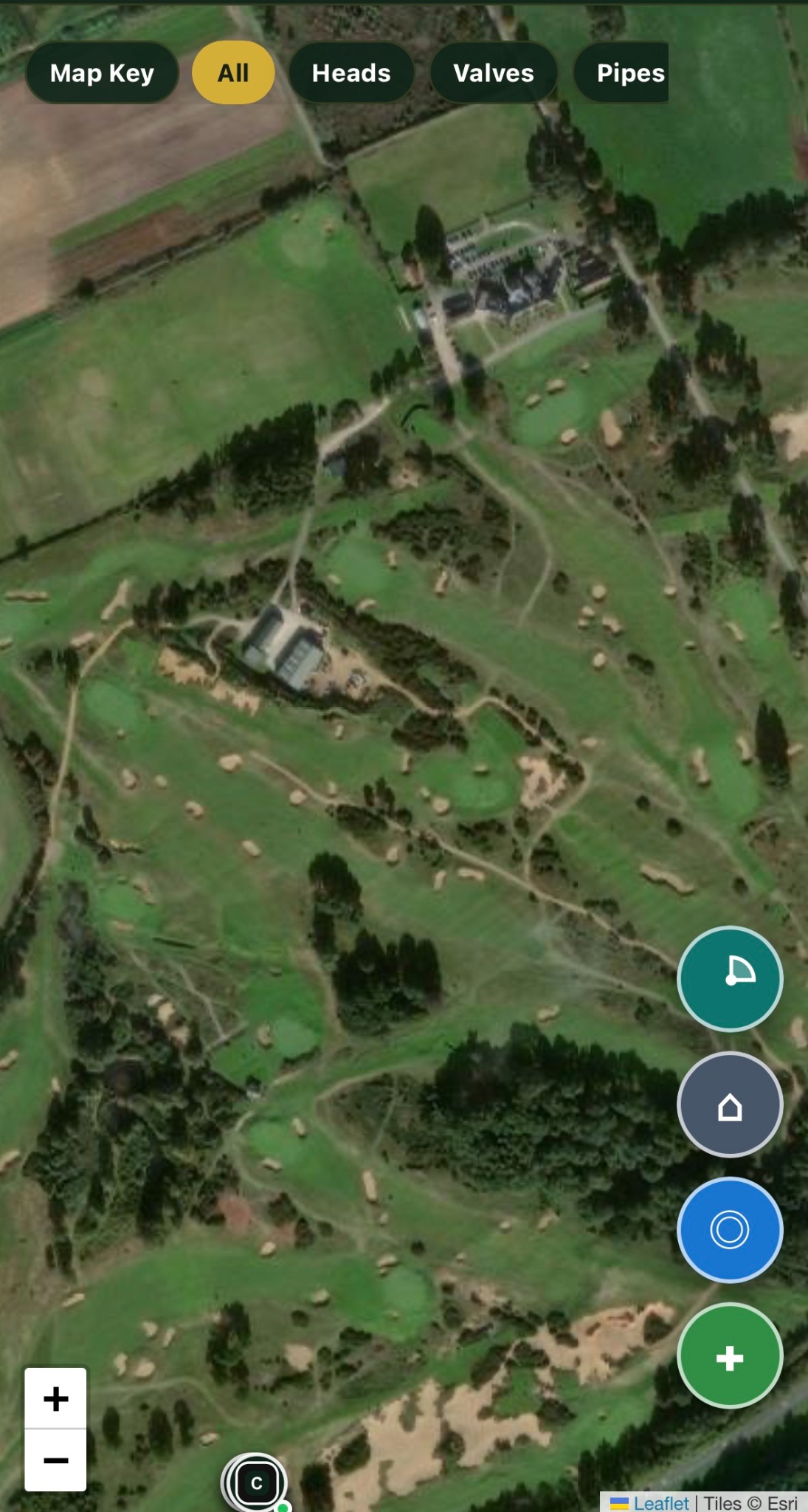
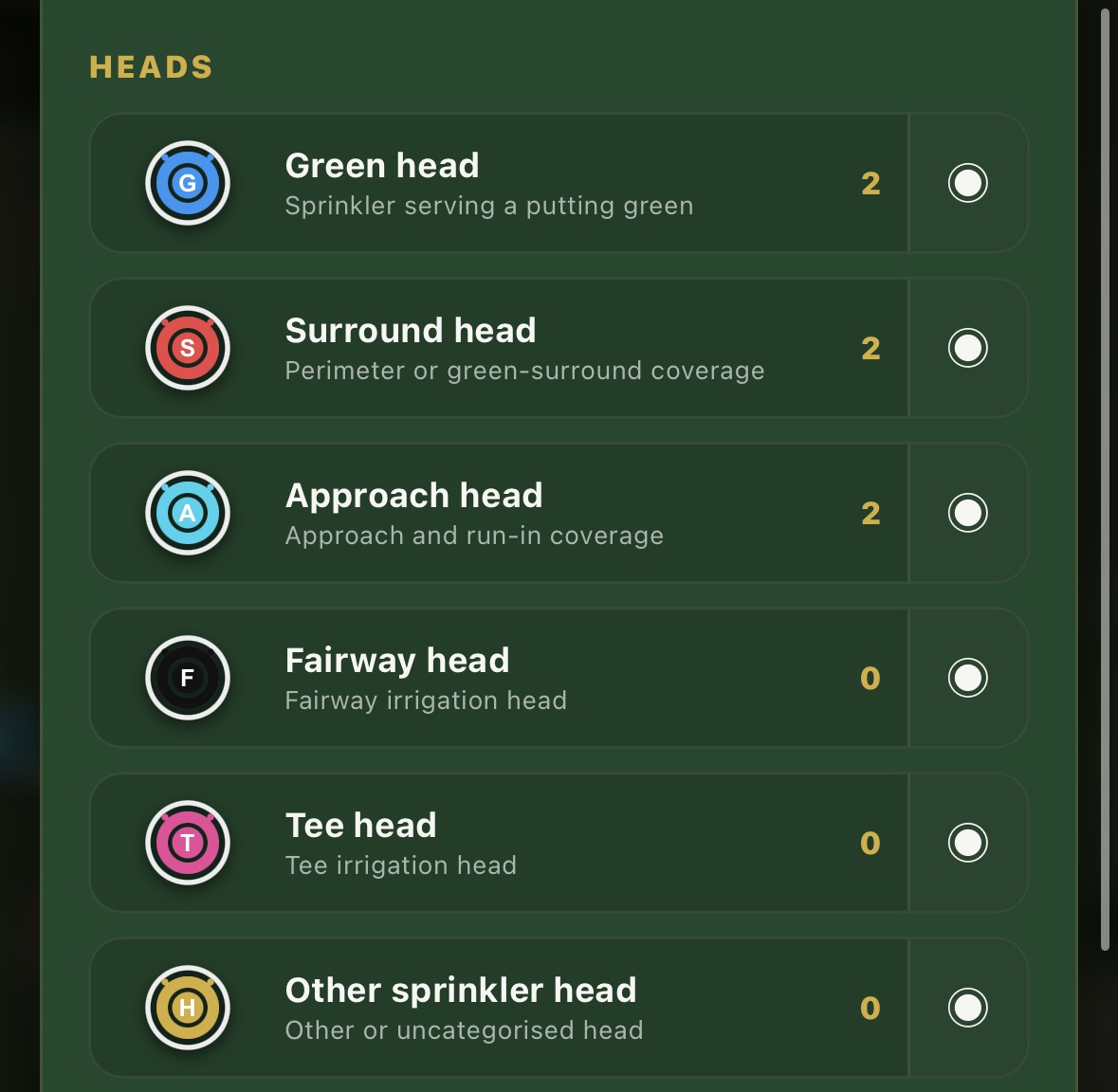
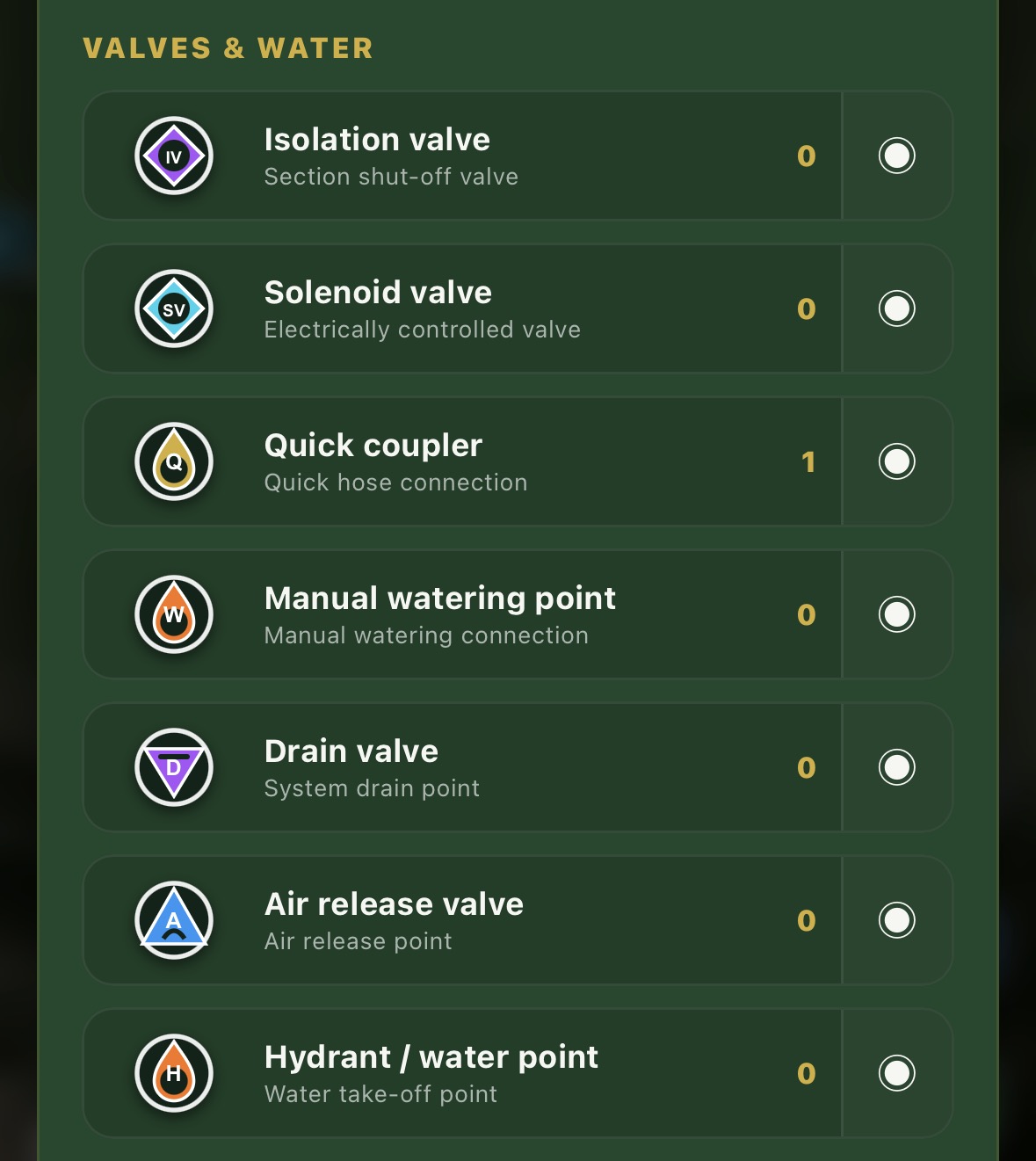
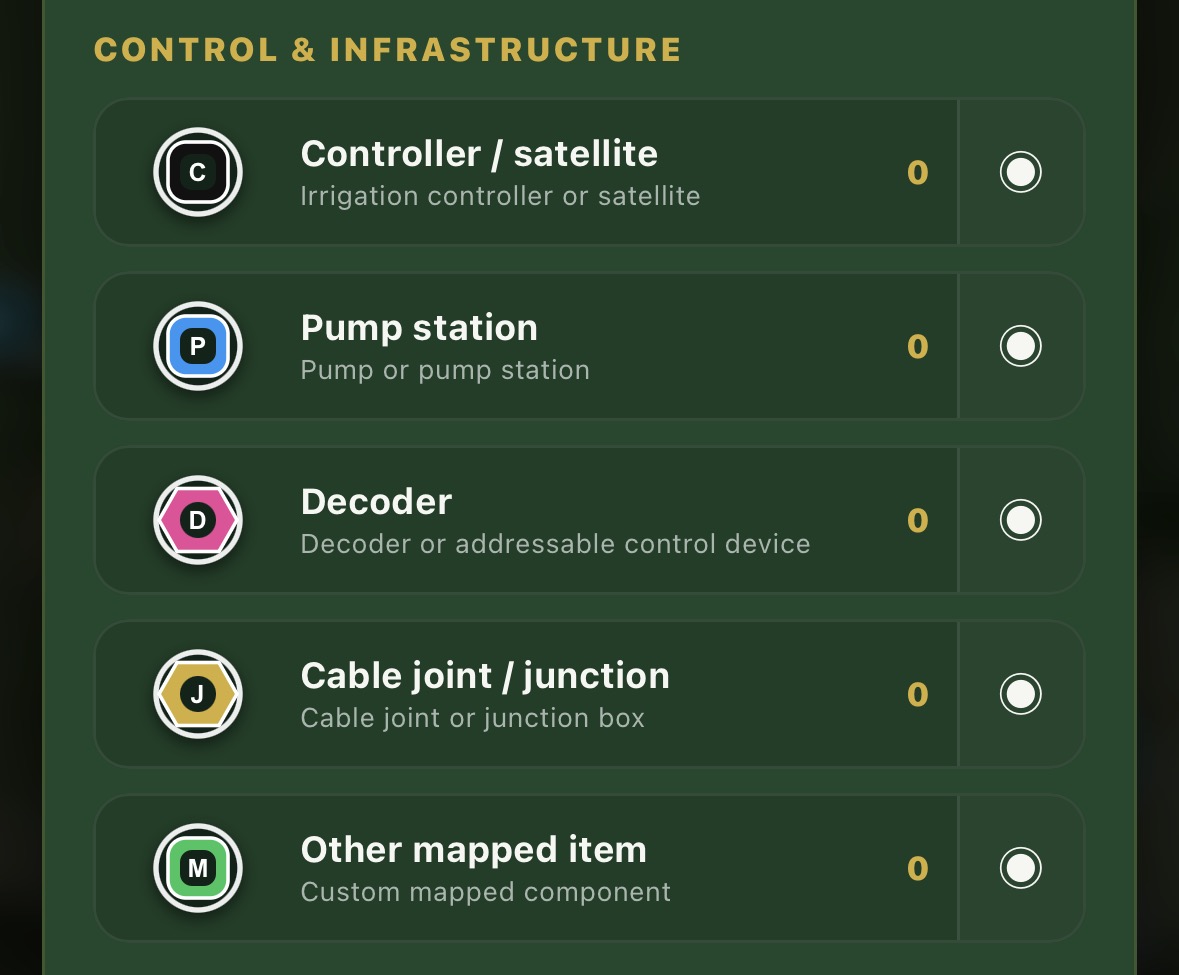
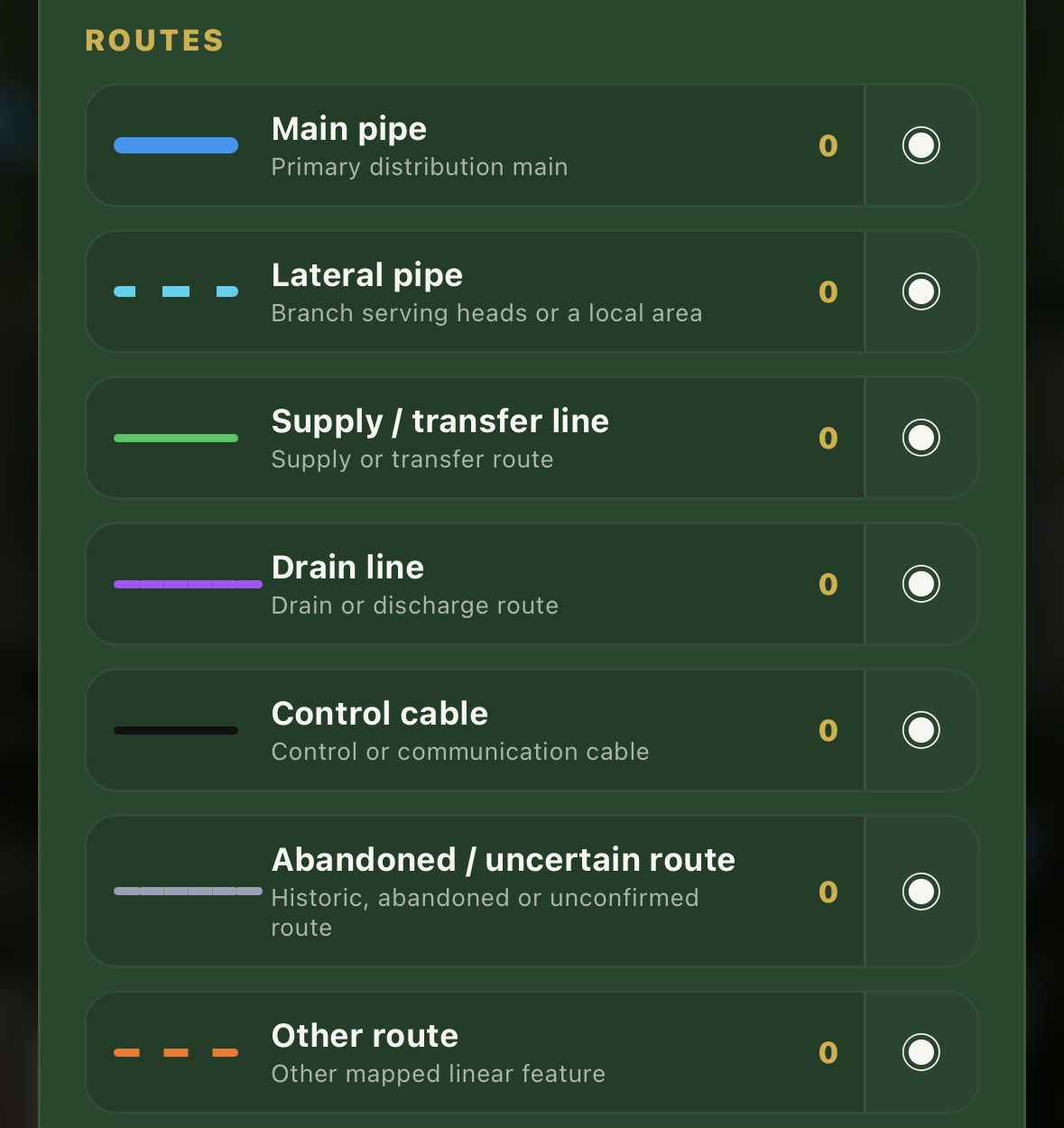
Tap Map Key at the top of the map to see the symbols, colours and line styles used throughout the module. The number beside each entry shows how many of that type are currently mapped.
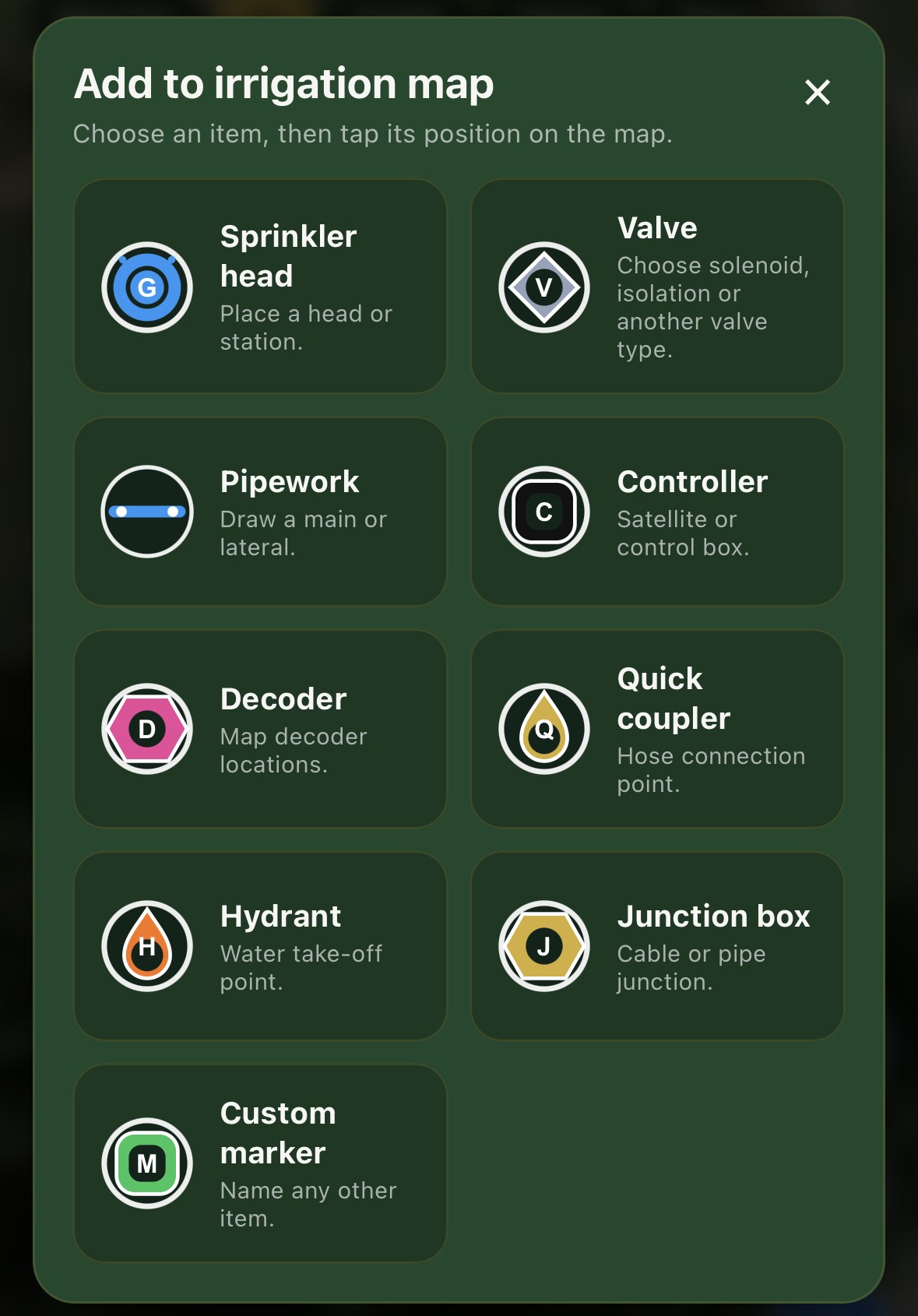
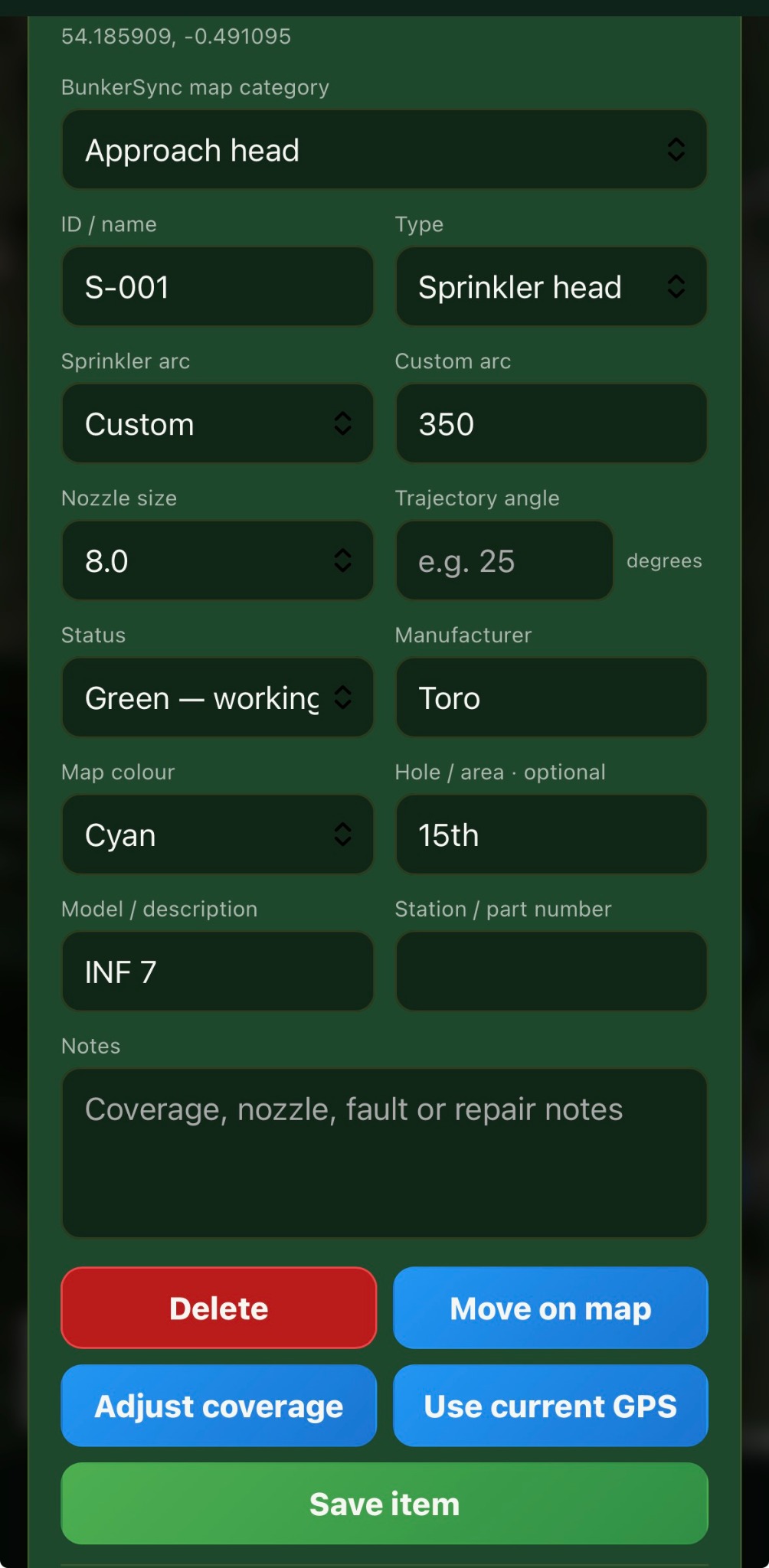
A sprinkler record can include its map category, ID, arc, nozzle, trajectory, status, manufacturer, hole or area, model, station number and notes. Tap Use current GPS to update its location or Move on map to reposition it manually.
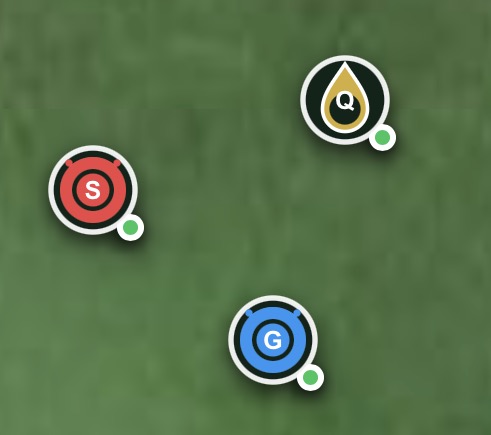
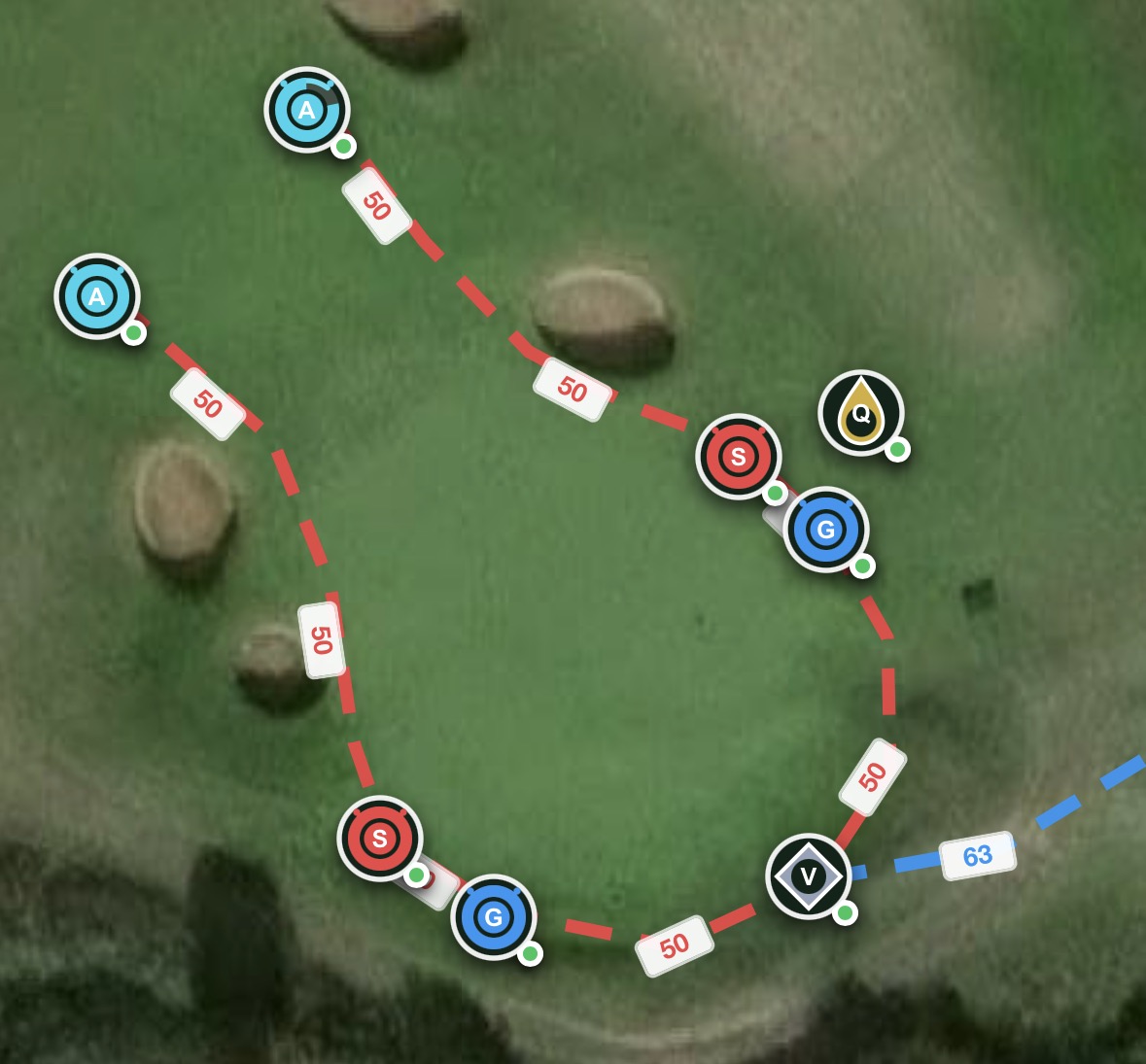
Mapped assets use distinct letters and colours. The small status dot shows whether the item is working normally or requires attention.
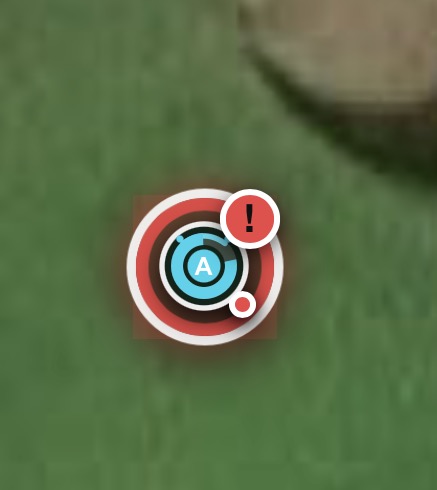
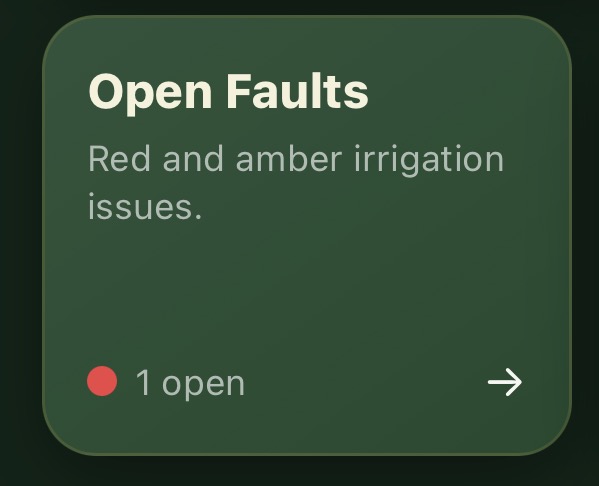
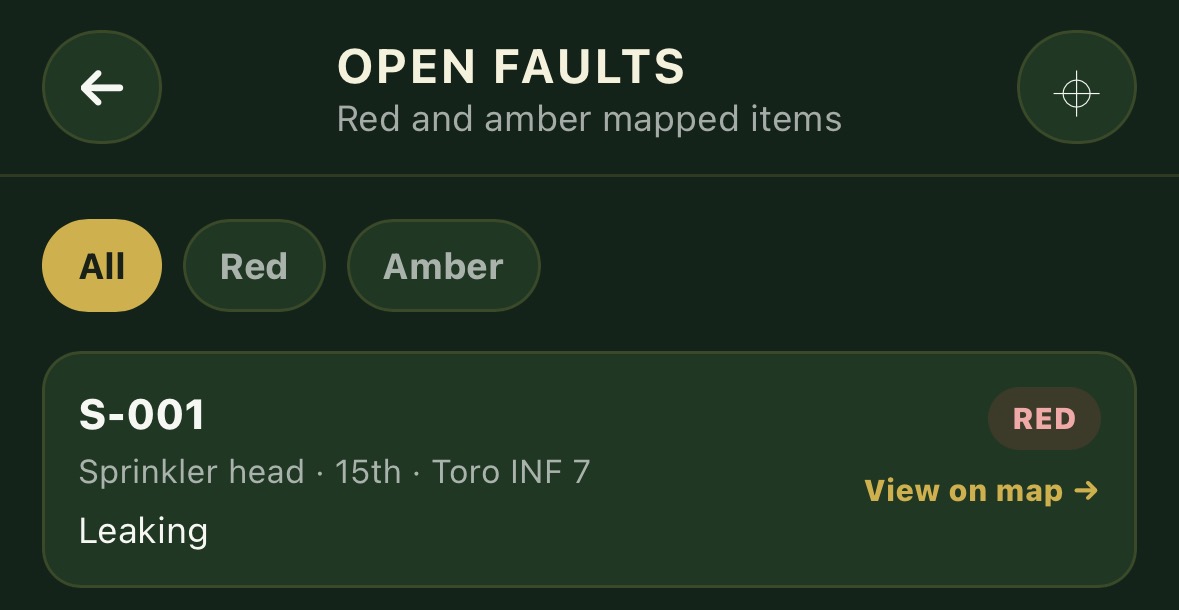
When an item is marked Amber or Red, the Open Faults tile shows the number of active issues. Open the tile to see all affected assets together, then tap View on map to jump directly to the fault.
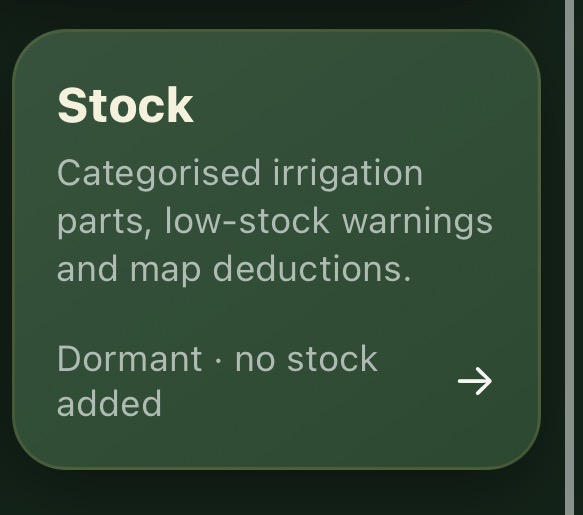
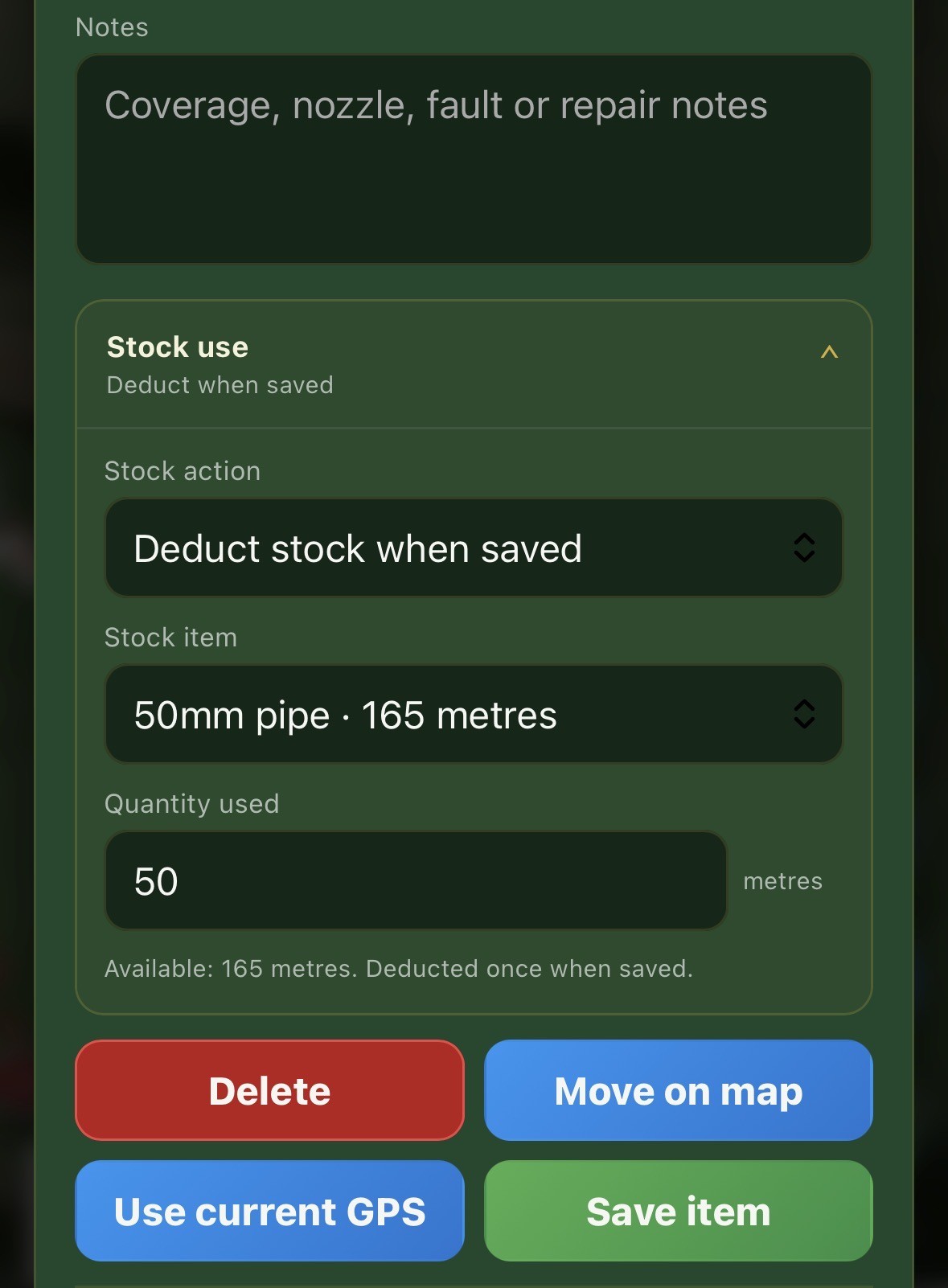
Stock is optional and remains dormant until the first item is added. Open Stock from the Irrigation dashboard, tap the + button and enter the item quantity and low-stock warning level.
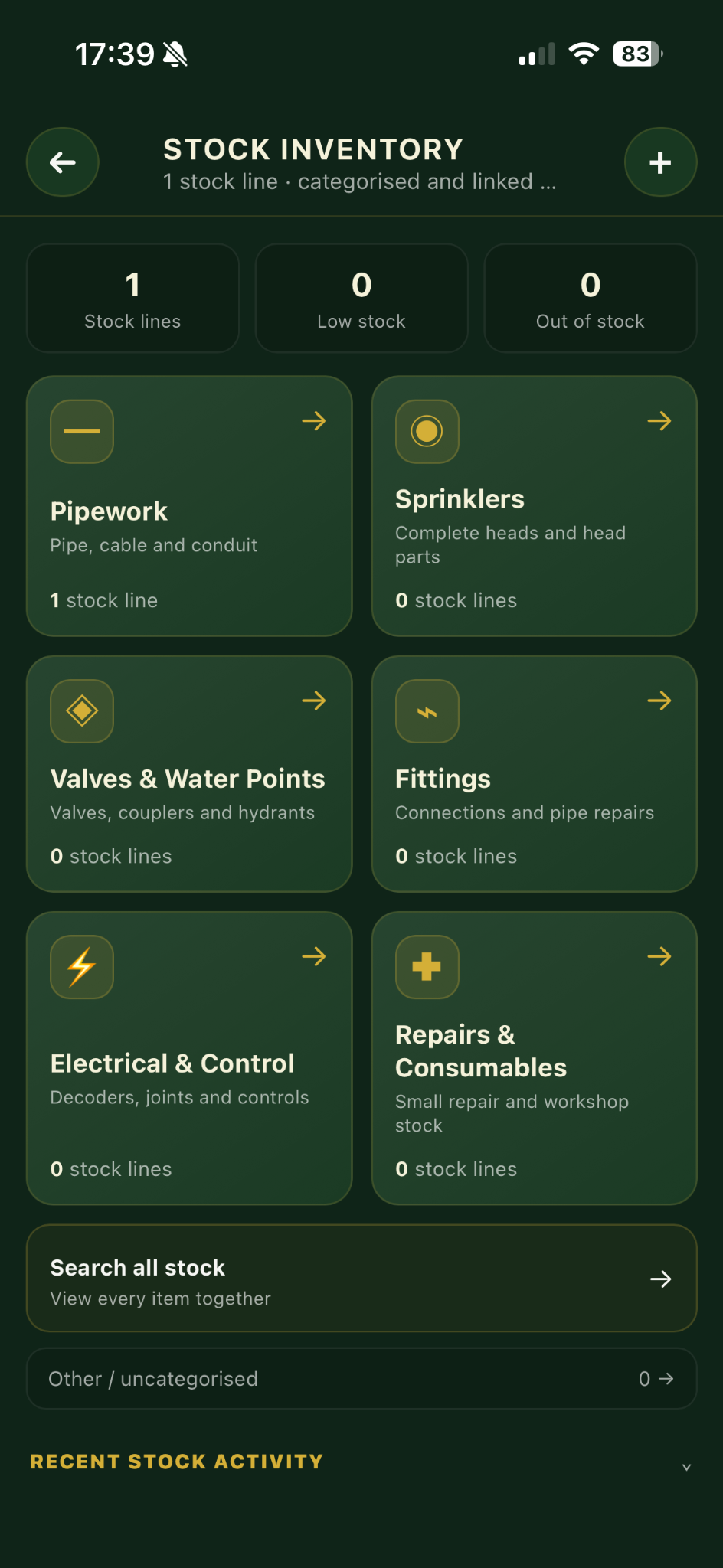
The quantity is deducted once when saved. Existing or planned map records do not reduce stock unless this action is deliberately selected.
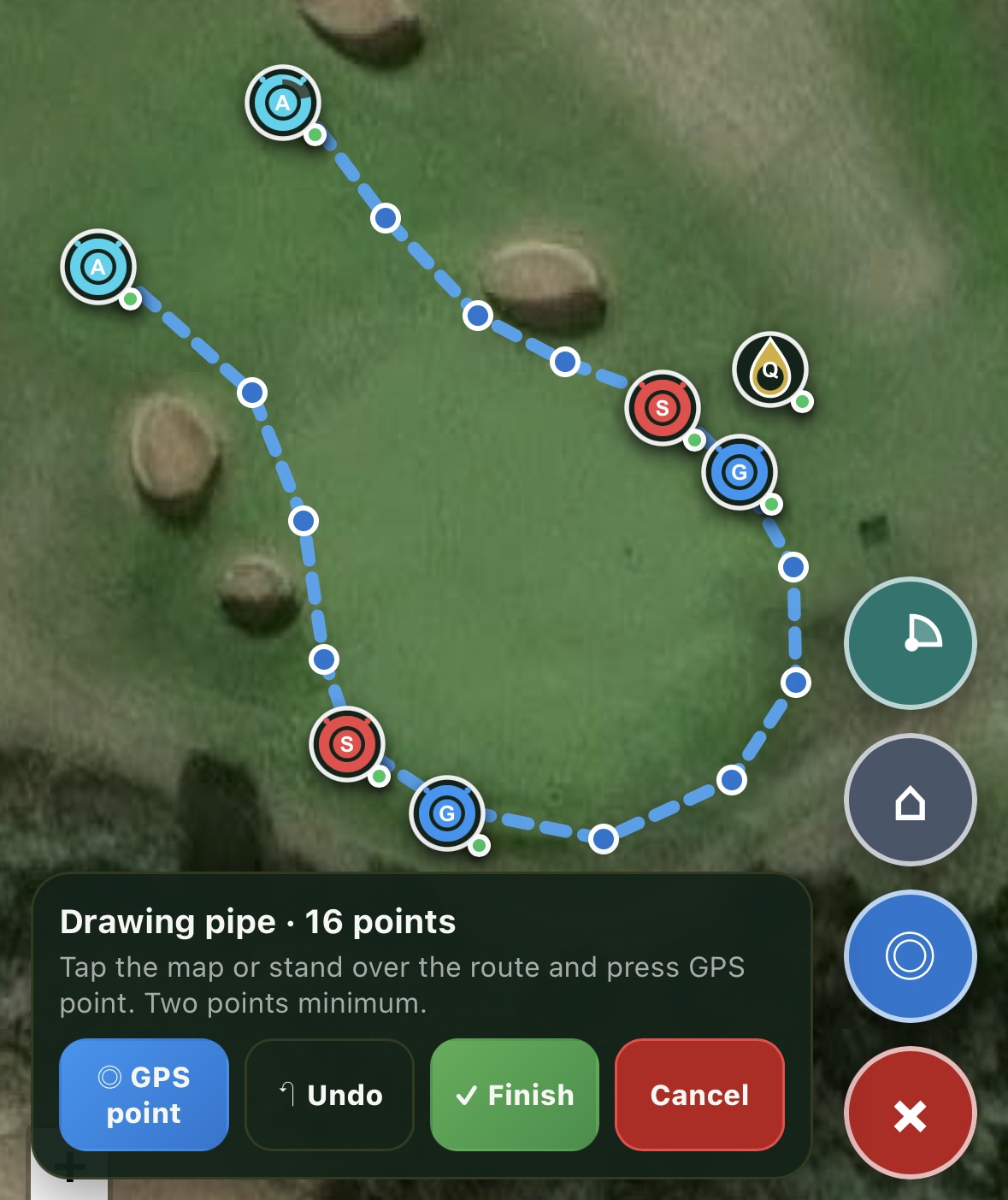
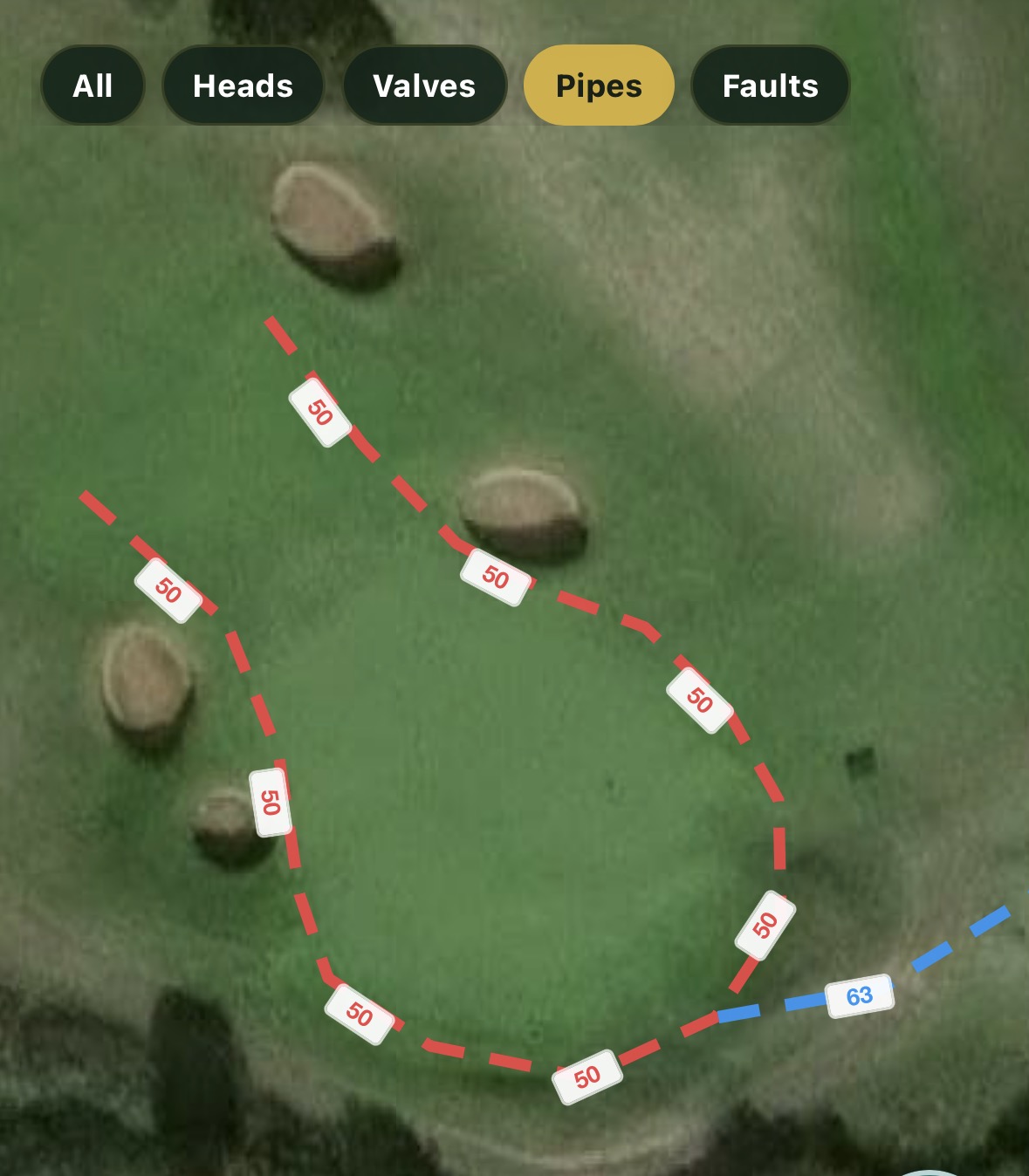
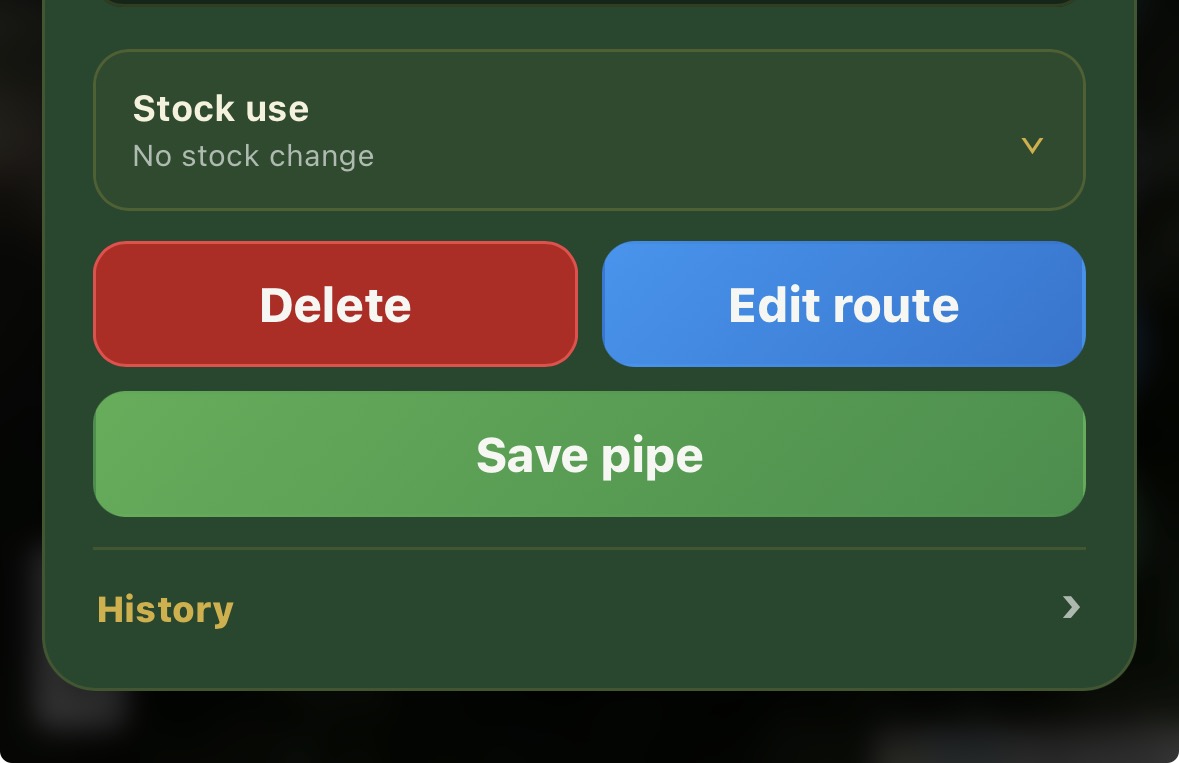
Open an existing route and tap Edit route to move individual points and improve its alignment.
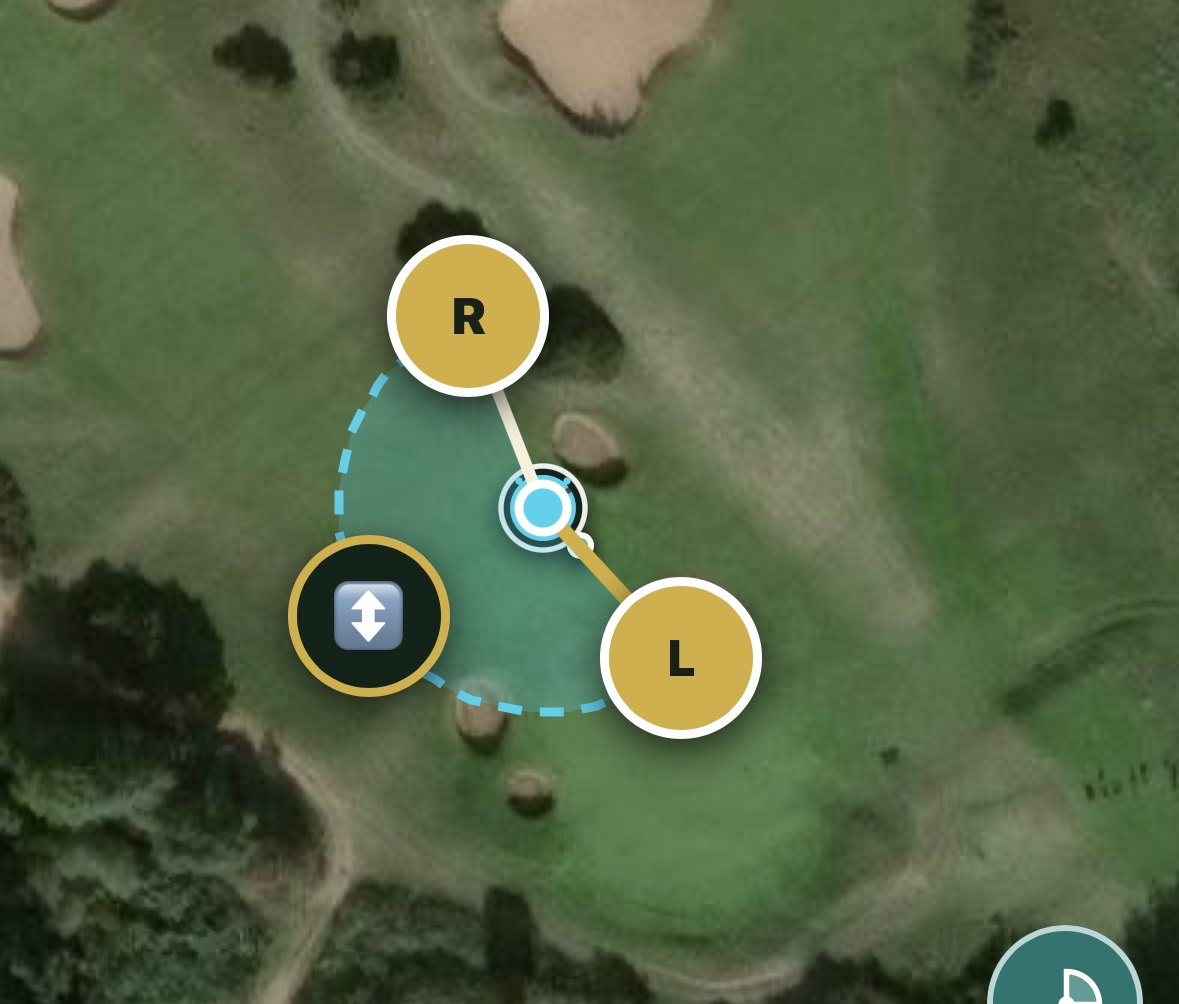
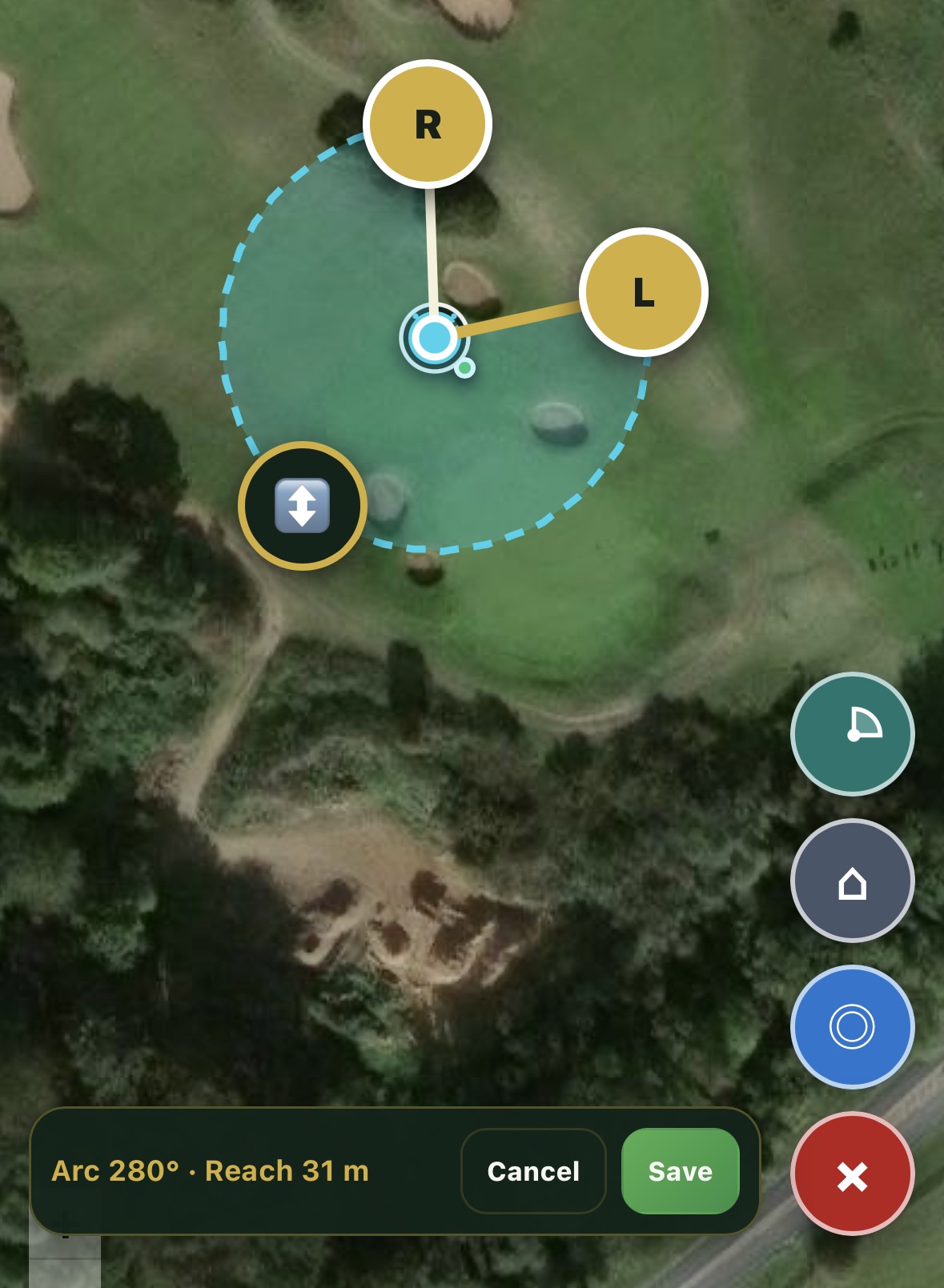
Open a sprinkler and tap Set coverage. The visual editor lets the coverage be lined up directly with the real area being watered.
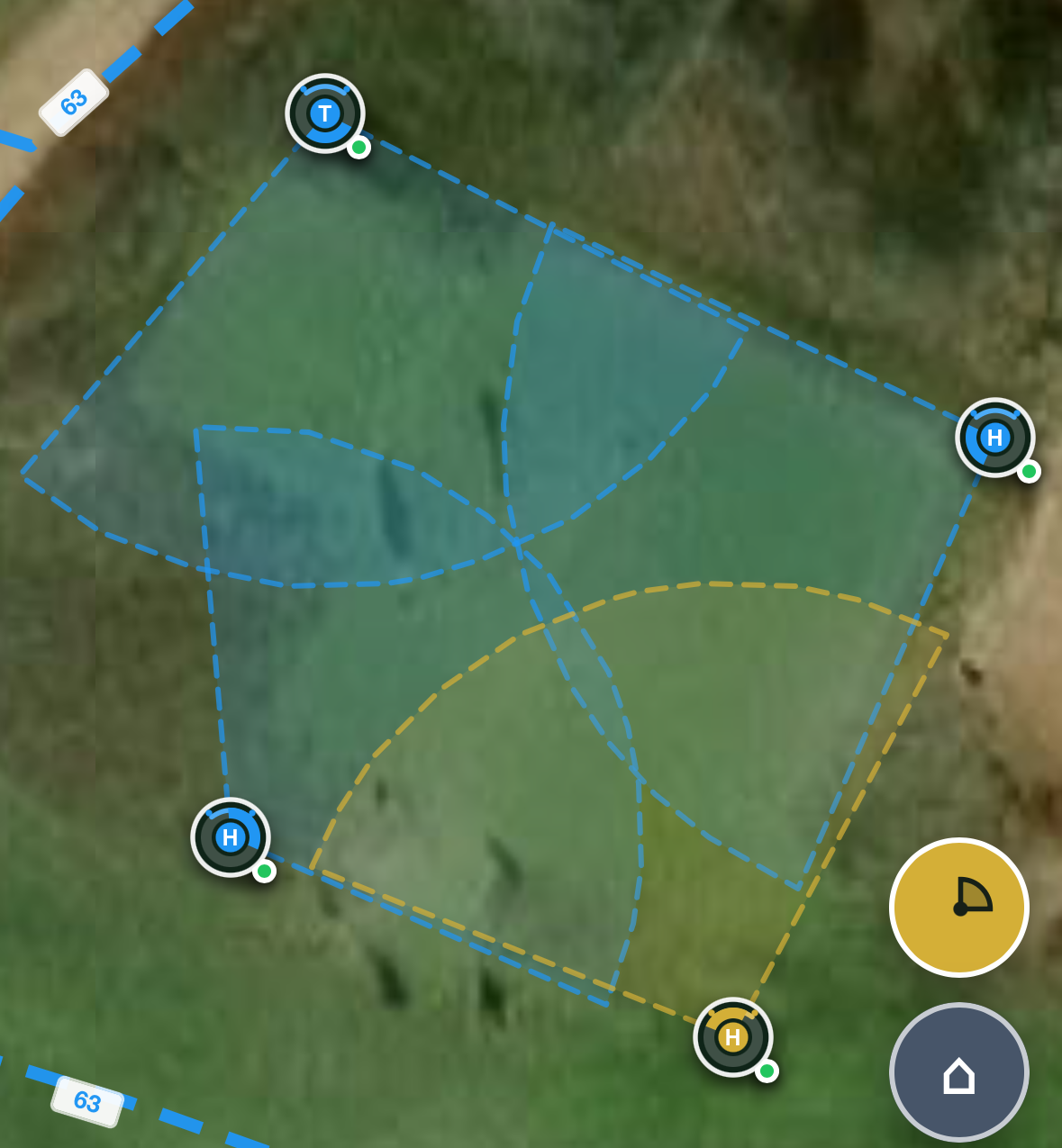
Tap the sprinkler-coverage button to display every configured arc together. This makes overlap, gaps and incorrect throw distances much easier to see.
The filter buttons at the top of the map can show only Heads, Valves, Pipes or Faults. The selected filter turns gold.